Composed Chart By Category X
Specs
| Label | Value |
|---|---|
| Version | 0.1.0 (updated on 2026-05-18) |
| Developer | Labii Inc. |
| Type | Dashboard |
| Support Configuration | Yes |
Overview
The Composed Chart By Category X dashboard widget displays multiple numeric measures against the same categorical X axis in a single mixed chart. Each configured series can use its own chart type, color, aggregation rule, and left or right Y axis, which allows laboratory teams to compare metrics with different units or display styles without splitting the view into separate widgets. It is well suited for dashboards that need to combine totals, rates, averages, and other operational or scientific indicators in one compact visualization.
Use Cases
- Operations Dashboard: Compare sample intake, completion rate, and turnaround time by project, team, or workflow stage
- Quality Monitoring: Display defect count as bars, pass rate as a line, and average deviation as an area series across batches or instruments
- Inventory Oversight: Track stock level, usage volume, and reorder frequency by reagent category or storage location
- Executive Reporting: Present multiple KPIs together for laboratories that need a compact summary of throughput, exceptions, and utilization
- Research Program Review: Compare assay output, response rate, and variance across study groups or treatment categories
- Multi-Site Comparison: Split each metric by site, operator, or business unit to monitor differences across grouped categories
Configuration
Initial Setup
Open the dashboard where you want to place the widget
Click Add Widget and select Composed Chart By Category X from the Data Driven Charts category
Open the widget settings, select the source table, and define the categorical X axis
Add one or more numeric series, configure display options, then click Save
Required Settings
- Table: Select a table to update the filter dropdown and define the dataset used by the dashboard widget
Optional Settings
Data Source and Filtering
- Query: Specify a query to limit the results shown in the chart. This is useful for restricting the widget to a subset such as a single project, status, team, or date range
X Axis Settings
- X axis: Choose a column for the X axis. If nothing is selected, the record name will be used as the X axis
- X axis sorting: Choose how to sort the X axis values
- String (A-Z): Sort alphabetically in ascending order
- String (Z-A): Sort alphabetically in descending order
- Number (Ascending): Sort numerically in ascending order
- Number (Descending): Sort numerically in descending order
- RID (Ascending): Sort by record ID in ascending order
- RID (Descending): Sort by record ID in descending order
- X axis format: Choose how foreign key values are displayed on the X axis
- Full (UID: Name): Show the full foreign key label
- Name only: Show only the referenced record name
Grouping
- Group: Choose a column to group the data by. Group values become separate chart series for each configured numeric series, allowing comparison across cohorts, conditions, or teams
Series Configuration
- Series: Add one or more series. Each series can use its own column, chart type, color, Y axis, and aggregation
- Series > Column: Choose a numeric column for the series
- Series > Chart type: Choose how the series is drawn
- Area: Fill beneath the series to emphasize magnitude
- Bar: Highlight category-by-category comparison
- Line: Emphasize movement or trend across categories
- Scatter: Emphasize point values without connected lines
- Series > Color: Choose the display color for the series
- Series > Y axis: Choose whether the series uses the left or right Y axis
- Left: Use the primary Y axis
- Right: Use the secondary Y axis
- Series > Data aggregation: Choose how values are summarized when multiple records share the same X axis value
Aggregation Options
The widget supports the following aggregation values for each series:
- None: Do not apply an aggregation when raw values are appropriate
- Sum: Add matching values together
- Max: Use the largest matching value
- Median: Use the middle matching value
- Min: Use the smallest matching value
- Average: Use the mean of matching values
Display Settings
- Chart title: Provide the title displayed above the chart
- Height: Set chart height in pixels. The default is 250px
Auto-Update Settings
- Should auto update: If checked, the widget performs a live calculation when the source data changes
- Should auto update when empty: If checked, the widget performs a live calculation even when the widget initially has no data
This widget works best when each series reflects a distinct numeric metric and the X axis contains a manageable number of categories for dashboard viewing.
Display Configuration
Click the widget's Configure button after adding it to the dashboard
Choose the Table, X axis, and optional Group settings to define how categories are created
Add each Series and assign its Column, Chart type, Color, Y axis, and Data aggregation
Set Chart title, Height, and any auto-update options, then click Save to refresh the widget
Data Source Configuration
Use the widget settings to control what data is visualized:
Select the source Table that contains the dashboard metrics you want to monitor
Apply an optional Query to limit the records included in the chart
Choose the X axis and optional Group column to define category structure
Configure each series with the correct numeric column and aggregation logic for the KPI it represents
Large numbers of categories, groups, or configured series can reduce readability and may slow dashboard refreshes. Use query filters to keep the widget focused on the most relevant metrics.
Advanced Configuration
For more complex dashboards:
Assign percentages, rates, or normalized values to the Right Y axis while keeping counts or totals on the Left Y axis
Mix Bar, Line, Area, and Scatter series to distinguish totals, trends, envelopes, and point-based measures within one widget
Use Group with multiple configured series to compare the same metrics across locations, operators, projects, or assay conditions
Enable auto-update for live dashboards that need to reflect changing operational or experimental data throughout the day
Readonly View
Dashboard widgets display data in read-only mode, and Composed Chart By Category X focuses on quick visual comparison of several metrics at once.
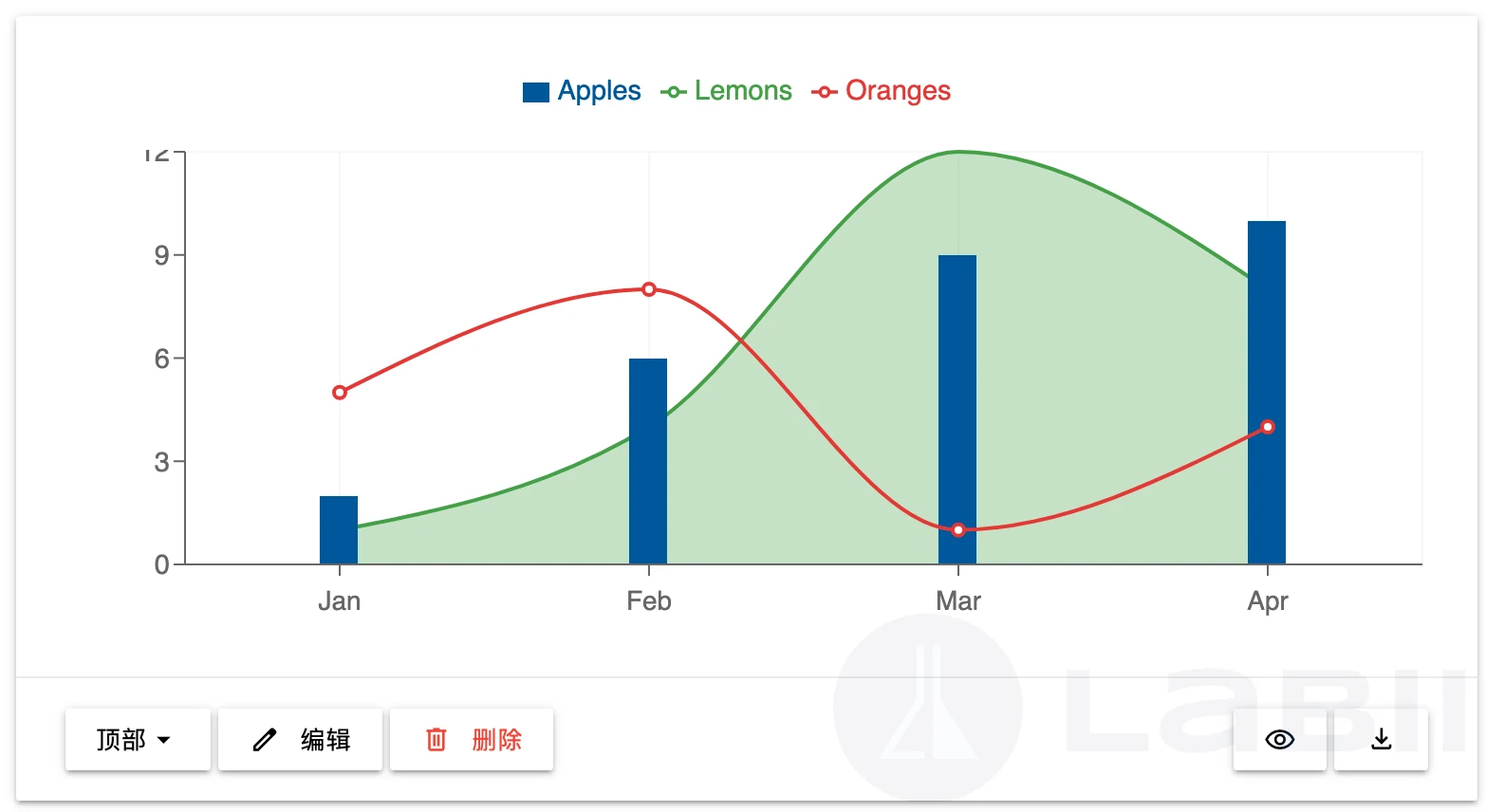
Display Features
- Visual Representation: A composed chart with categorical values on the X axis and multiple numeric series drawn as bars, lines, areas, or scatter points
- Data Points: Each category can display several series at once, including grouped variants if a group column is configured
- Dual Scale Support: The chart can show primary and secondary Y axes so different units remain interpretable on the same widget
- Interactive Details: Hovering over a category reveals the values for visible series
- Legend and Color Coding: Colors and labels identify each configured series and any grouped splits
Visual Elements
- Category Axis: The X axis shows record names or values from the selected category column
- Series Traces: Each configured series is rendered with its assigned chart type and color
- Left and Right Y Axes: Separate axes support measures with different scales
- Chart Title: A descriptive title appears above the visualization when configured
Data Indicators
- Values: The chart shows aggregated or raw numeric values depending on per-series configuration
- Trends: Line and area series highlight directional movement across categories
- Comparisons: Bar and scatter series make category-level contrasts easier to interpret
- Grouping: When enabled, groups create additional traces for comparison within the same widget
Interactive Features
- Hover Details: View exact series values for each category without leaving the dashboard
- Download: Export the underlying chart data for spreadsheets, presentations, or statistical analysis
- Auto Refresh: If auto-update is enabled, the widget recalculates as source data changes
Additional Functions
Mixed Chart Composition
This widget supports several chart styles in one dashboard tile.
- Bar series work well for totals, counts, and discrete category comparison
- Line series work well for trends or directional changes
- Area series emphasize magnitude and continuity
- Scatter series highlight discrete points or sparse observations
Separate Y Axes
Each series can be assigned independently to the left or right Y axis. This makes it practical to compare values such as volume and percentage in one view without flattening one metric against another.
Grouped Analytics
When a Group column is configured, the widget creates distinct traces for each group value within each numeric series. This helps dashboard viewers compare the same KPI across conditions such as:
- project versus project
- site versus site
- operator versus operator
- treatment versus control
Data Export
Open the dashboard and locate the Composed Chart By Category X widget
Click Download to export the chart data currently displayed
Save the exported file for use in Excel, presentations, or external analysis tools
Live Monitoring
When auto-update is enabled, the widget can support near-real-time monitoring for operational dashboards, QC reviews, or active project overviews.
Use this widget when stakeholders need a compact dashboard view that compares several metrics at once without navigating into separate reports.
Related Widgets
- Chart By Category X: Use when a single chart type and simpler series setup are sufficient
- Chart By Numeric X: Use when both axes should represent numeric values instead of categorical X labels