description: A comprehensive tool for managing plasmid constructs
Plasmid Editor
Overview
description: >- Visualize, edit, annotate, and manage plasmid constructs with an interactive sequence map and sequence-level editing tools for molecular biology workflows icon: dna
Plasmid Editor
Specs
| Label | Value |
|---|---|
| Version | 0.2.0 (updated on 2022-03-28) |
| Developer | Labii Inc. |
| Type | Section |
| Support Configuration | No |
Overview
The Plasmid Editor widget gives molecular biology teams an interactive workspace for documenting and modifying plasmid constructs directly inside Labii records. It combines a graphical plasmid map, a synchronized sequence viewer, feature annotation tools, and enzyme inspection so users can review constructs visually while making base-level edits. This makes the widget useful for cloning design, plasmid verification, construct documentation, and inventory tracking where both the sequence and its annotated features need to stay connected to the rest of the experiment record.
Use Cases
- Plasmid Design: Create new constructs by entering DNA sequences and annotating promoters, coding regions, tags, origins, and selection markers.
- Sequence Review: Inspect plasmid maps and linear sequence views before ordering primers, enzymes, or synthesis materials.
- Feature Management: Add, edit, or remove annotated regions such as genes, restriction sites, and regulatory elements as designs evolve.
- Cloning Workflows: Evaluate digest enzymes and cut sites while planning insertions, deletions, and plasmid modifications.
- Inventory Documentation: Store plasmid sequences and annotations alongside sample records, storage locations, and usage history in Labii.
Interface
Read-only View
In read-only mode, the widget displays the saved plasmid construct as part of the record without exposing editing controls. Users can review the sequence, annotated features, and the overall construct layout for record handoff, experimental review, or compliance-driven inspection. This mode is helpful when the construct needs to remain visible but protected from accidental edits.
- Data Display: Shows the saved plasmid map, sequence content, and feature annotations for the record.
- Navigation: Supports visual review of plasmid layout and saved construct information.
- Export Options: Import and editing actions are hidden until the widget is opened in edit mode.
- Search/Filter: Sequence search and mutation tools are not available in read-only mode.
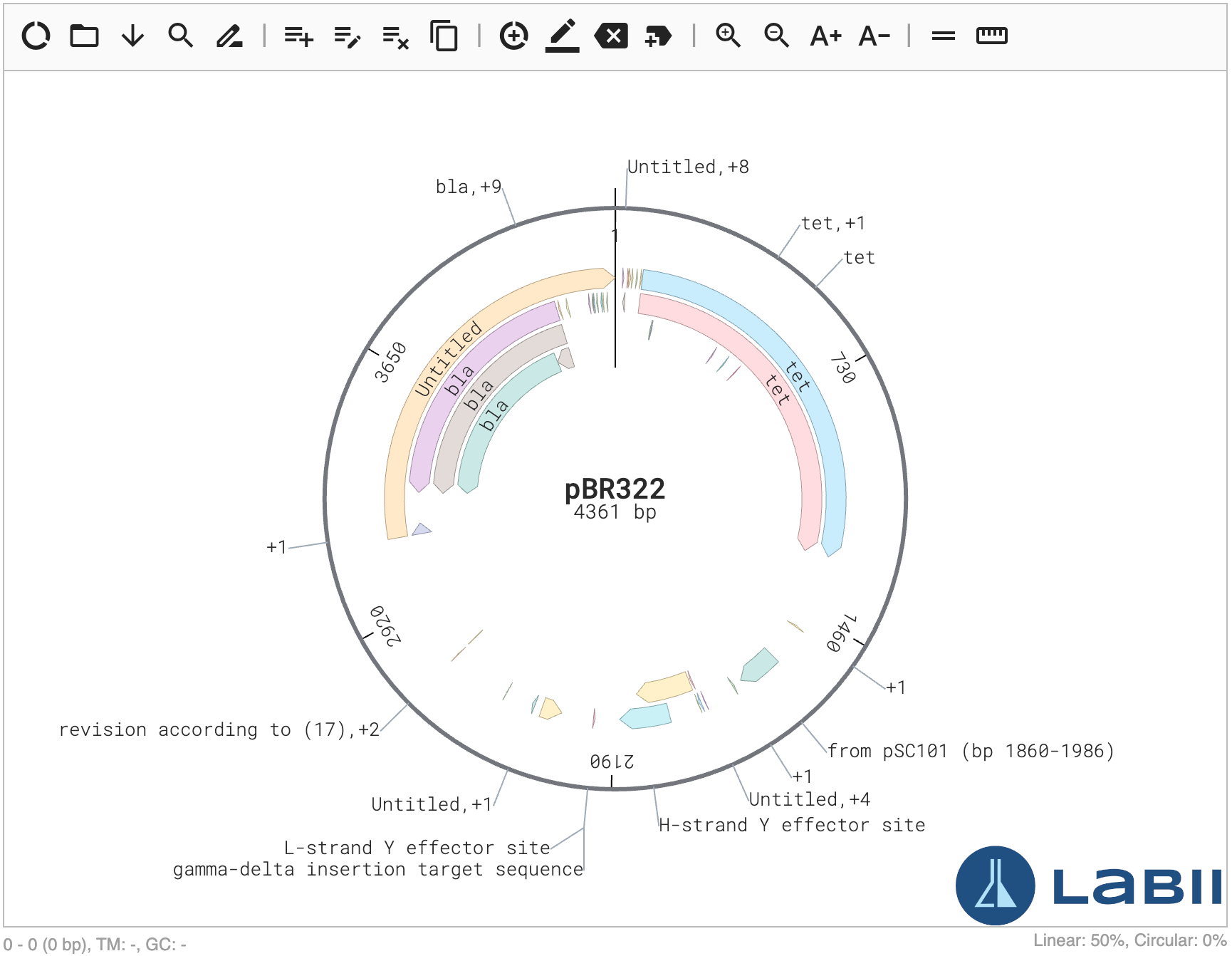
The read-only view keeps the saved plasmid construct visible in the record for inspection of the current map and annotations.
Edit View
In edit mode, the widget exposes the full editing workspace with a toolbar, map views, sequence viewer, feature tools, and enzyme analysis options. Users can switch among different visualizations, load plasmid files, search sequences, update bases, and manage annotated features in one place. The editing workspace is designed for iterative molecular biology work where users need to move quickly between graphical context and sequence-level operations.
- Input Methods: Load supported sequence files, drag files into the widget, or edit sequence bases directly in the viewer.
- Formatting Options: Switch between combined, linear, circular, feature, and enzyme-focused views to inspect constructs from different angles.
- Validation: Review search results, selected-sequence metadata, annotations, and cut sites before saving changes.
- Collaboration: Save edited constructs back into the Labii record so collaborators can review the latest annotated plasmid state.
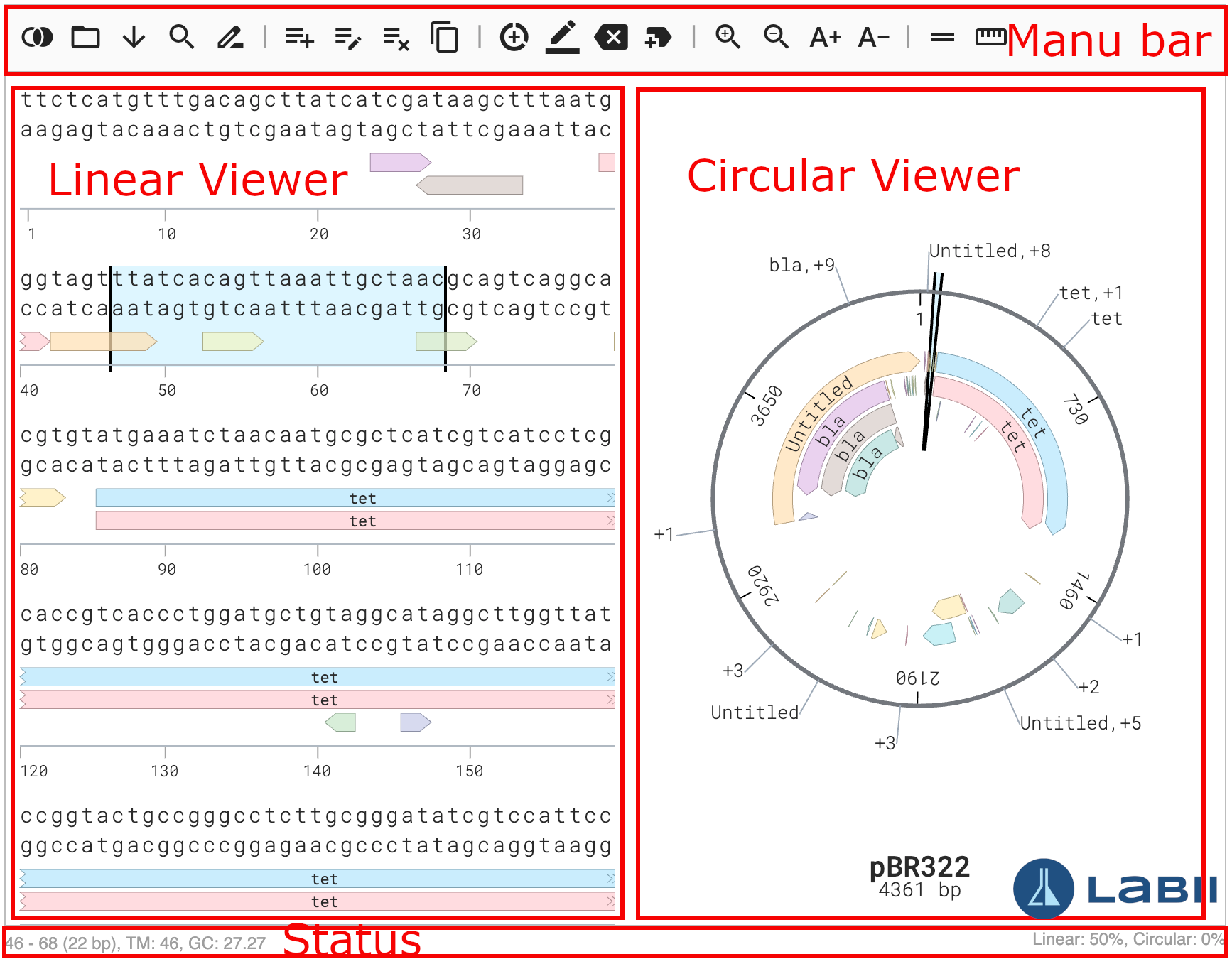
The edit view provides the toolbar, sequence map, and editing controls needed for plasmid design and annotation.
Configuration
The Plasmid Editor widget does not require widget-level configuration before use. After adding the widget to a section, users can immediately load a construct, enter sequence data, and begin editing.
Open the record and add the Plasmid Editor widget to a section.
Open the section in Edit mode.
Load an existing plasmid file or start with sequence data already saved in the record.
Review the plasmid views and save the record after your edits are complete.
Required Settings
- None: The widget is ready to use without a separate settings panel.
Optional Settings
- View Selection: Choose the most useful visualization for the current task, such as Both, Linear, Circular, Features, or Enzymes.
- Display Controls: Toggle complement and axis visibility to match the level of detail needed for the review.
- Zoom Level: Adjust zoom to inspect specific regions or review the construct at a higher level.
Because the widget has no dedicated configuration form, most customization happens during editing through the toolbar and available views.
Advanced Configuration
For advanced usage, prepare standardized plasmid source files and naming conventions before importing constructs so annotations remain consistent across projects.
Curate plasmid source files such as GenBank, FASTA, or SnapGene exports before importing them into Labii.
Standardize feature names, colors, and construct naming conventions so saved plasmids remain comparable across records.
Additional Functions
Switch Views
The widget provides multiple views to help users understand plasmid structure, annotations, and digestion results.
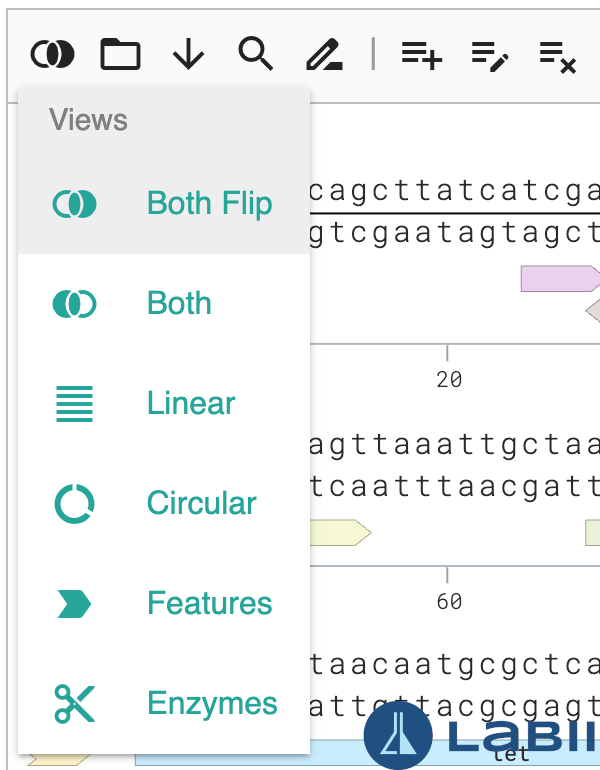
The Views menu lets users switch between combined, linear, circular, feature, and enzyme-focused displays.
Open the Plasmid Editor section in Edit mode.
Click Views in the toolbar.
Select Both, Both Flip, Linear, Circular, Features, or Enzymes based on the task.
- Both / Both Flip: Displays circular and linear viewers together so users can inspect map-level and sequence-level context at the same time.
- Linear: Emphasizes sequence context, annotated features, and selection-based editing.
- Circular: Focuses on the plasmid map for visual review of construct structure.
- Features: Lists annotated features with names, types, start and end positions, and directions.
- Enzymes: Lists restriction enzymes, recognition sites, and cut positions for digest planning.
Load from a File
Plasmid Editor supports importing common molecular biology file formats so users can start from existing construct data rather than re-entering sequences manually.
Open the widget in Edit mode.
Click Open in the toolbar, or drag a file onto the cloud icon.
Select a supported file such as .gb, .gbk, .ab1, .ape, .fasta, .fas, .json, .xml, .seq, .sbd, or .dna.
Review the imported construct and save the record.
Search Sequence
The sequence search tool helps users find a sequence segment, confirm primer placement, or locate a target region before creating or updating annotations.
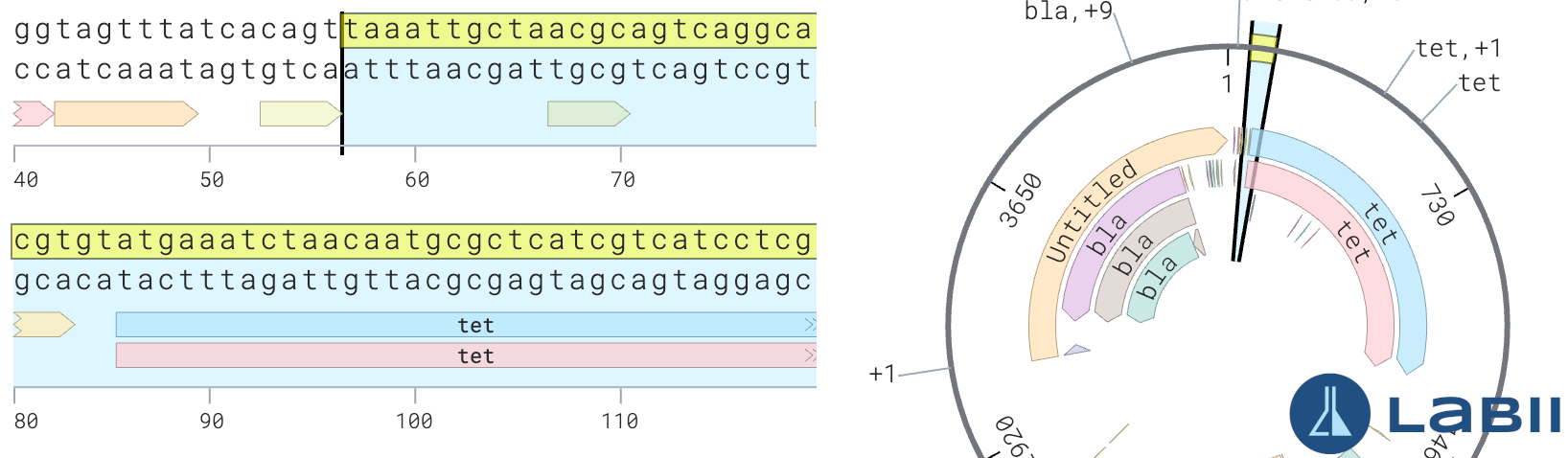
Sequence search highlights matching regions so users can inspect or annotate targets directly in the construct.
Click Search in the toolbar.
Enter the query sequence and, if needed, use wildcard bases such as y, r, w, s, k, m, d, v, h, b, x, or n.
Set the maximum allowed mismatch.
Click Submit and review the highlighted results.
Change Bases
Users can insert, replace, delete, or copy selected bases while working directly in the plasmid sequence.
Select a position or sequence region in the linear viewer.
Use the toolbar to choose Insert bases at selection, Edit selection bases, Delete selection bases, or Copy selection bases.
If prompted, enter or paste the updated nucleotide sequence and submit the change.
Review the updated map and sequence view before saving.
Change Features
Annotated features can be added, updated, or removed as plasmid designs change.
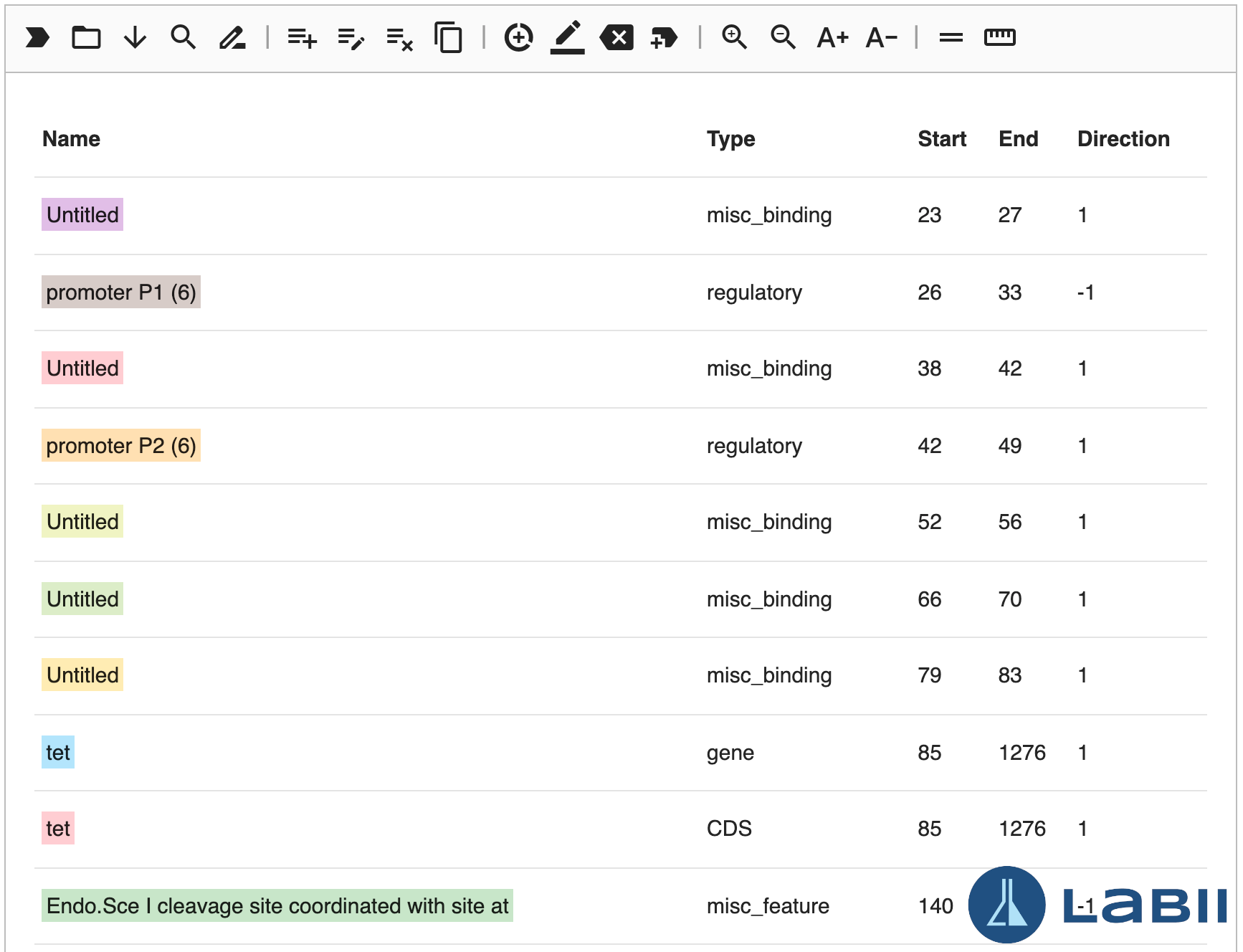
The Features view lists annotations with position and direction details to support review and editing.
Select a sequence region or an existing feature in the editor.
Click Add feature, Edit feature, or Remove feature from the toolbar.
Provide or update the feature name, type, start, end, direction, and color as needed.
Submit the change and verify the updated annotation in the map or features list.
Review Enzymes and Cut Sites
The enzyme tools help users evaluate restriction digest plans and confirm where enzymes cut the current plasmid.
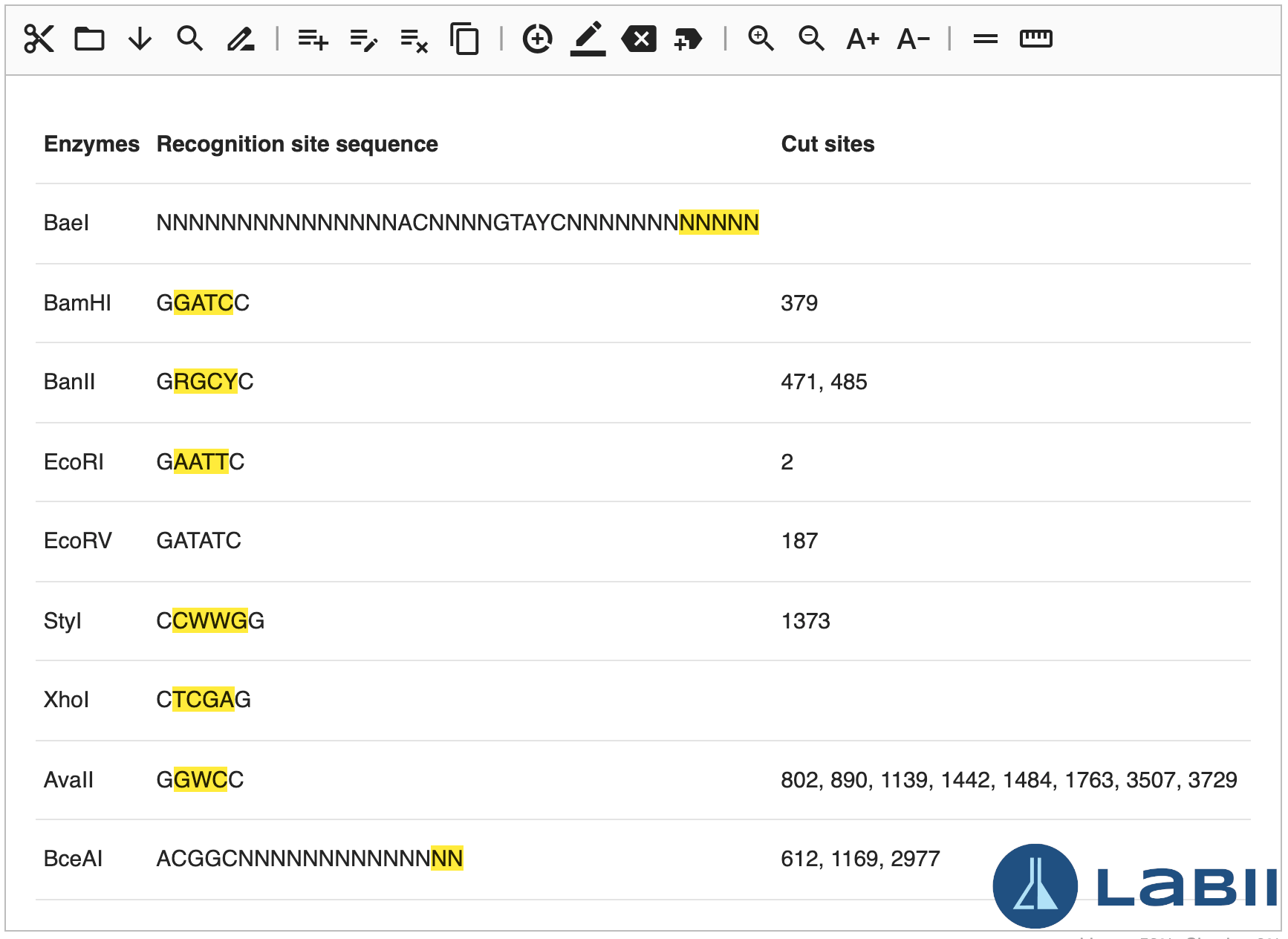
The Enzymes view summarizes recognition sites and cut positions for the active plasmid construct.
Open the widget in Edit mode and switch to the Enzymes view.
Use Add enzymes to include the restriction enzymes you want to inspect.
Review recognition sites and cut-site positions for the current plasmid.
Training Video
Best Practices
Sequence Documentation
- Import curated reference files whenever possible instead of retyping long sequences manually.
- Use descriptive construct names so collaborators can recognize plasmids without opening source files.
- Save after major edits to keep the record synchronized with the current construct design.
Annotation Quality
- Review feature start and end positions carefully before finalizing annotations.
- Keep feature naming consistent across related projects so sequence exports and searches stay understandable.
- Use color and direction fields intentionally to make complex plasmid maps easier to interpret.
Workflow Reliability
- Recheck enzyme cut sites after sequence edits that could affect cloning plans.
- Use search before adding primers or features to confirm exact target locations.
- Review both graphical and sequence views when verifying a final construct.
Using curated source files, consistent annotations, and view-based review before saving helps maintain reliable plasmid records and reduces downstream cloning errors.
Common Pitfalls to Avoid
- Avoid saving imported constructs without reviewing their annotations, because external files may contain outdated or inconsistent labels.
- Avoid making sequence edits without checking feature boundaries and digest results afterward.
- Instead confirm sequence changes in both the feature list and enzyme view before treating the plasmid as final.
Related Widgets
- Open Vector Editor: Use this widget when you need a broader sequence editing environment with additional alignment and auto-annotation workflows.
- Molecular Biology Suite: Use the suite overview to compare plasmid-focused tools with other sequence-analysis widgets in the same category.
- Section Widgets: Refer to the section widget overview for general guidance on adding and organizing widgets in Labii records.
References
- Plasmid Editor in the table detail view - User-guide context for adding plasmid editor sections to records.
- Molecular Biology Suite - Category overview for related molecular biology widgets.
- Biology - Higher-level biology widget category overview.
Use case
- Plasmid Design and Annotation - Researchers can design new plasmids by entering DNA sequences and annotating key features like promoters, ORFs, selection markers, and tags.
- Inventory Management - Integrated with Labii’s data platform, the plasmid editor can help manage plasmid inventories by linking sequence data with sample storage and usage records.
Interface
Labii's Plasmid Editor has a menu bar, a main body (views), and a status message.
Menu bar
The menu bar includes all the functions necessary to modify the plasmid sequences and features. Each function is represented by an icon, and when your mouse is hovered over the icon, the tool's name is displayed. A menu bar can be seen only in edit mode and hidden in read-only mode.
The menu bar contains the following tools:
- Views - Switch to a different view. Default to Both Flip
- Open - Load data from a file
- Load from accession - Load data from an NCBI accession ID or iGEM part ID
- Search - Search function
- Rename - Rename the plasmid
- Insert bases at the selection
- Edit selection bases
- Delete selection bases
- Copy selection bases
- Add feature
- Edit feature
- Remove feature
- Add enzymes - Add enzymes to see the digest results
- Zoom in
- Zoom out
- Uppercase - Change all sequences to uppercase
- Lowercase - Change all sequences to lower case
- Show/Hide complement
- Show/Hide axis
Status
The left side of the status message shows the metadata of the selection. Specifically, the start and end positions, the length of the selection, the TM and the GC.
The right side of the status message shows the percentage of zoom
Views
Plasmid Editor provides various views to help you understand plasmid sequences and maps. Click the "Views" menu in the menu bar to switch views.
Both
The Both View displays both a linear and circular viewer. The Both View shows the circular viewer on the left and the linear viewer on the right. In Both Flip View, the linear viewer is on the left, while the circular viewer is on the right.
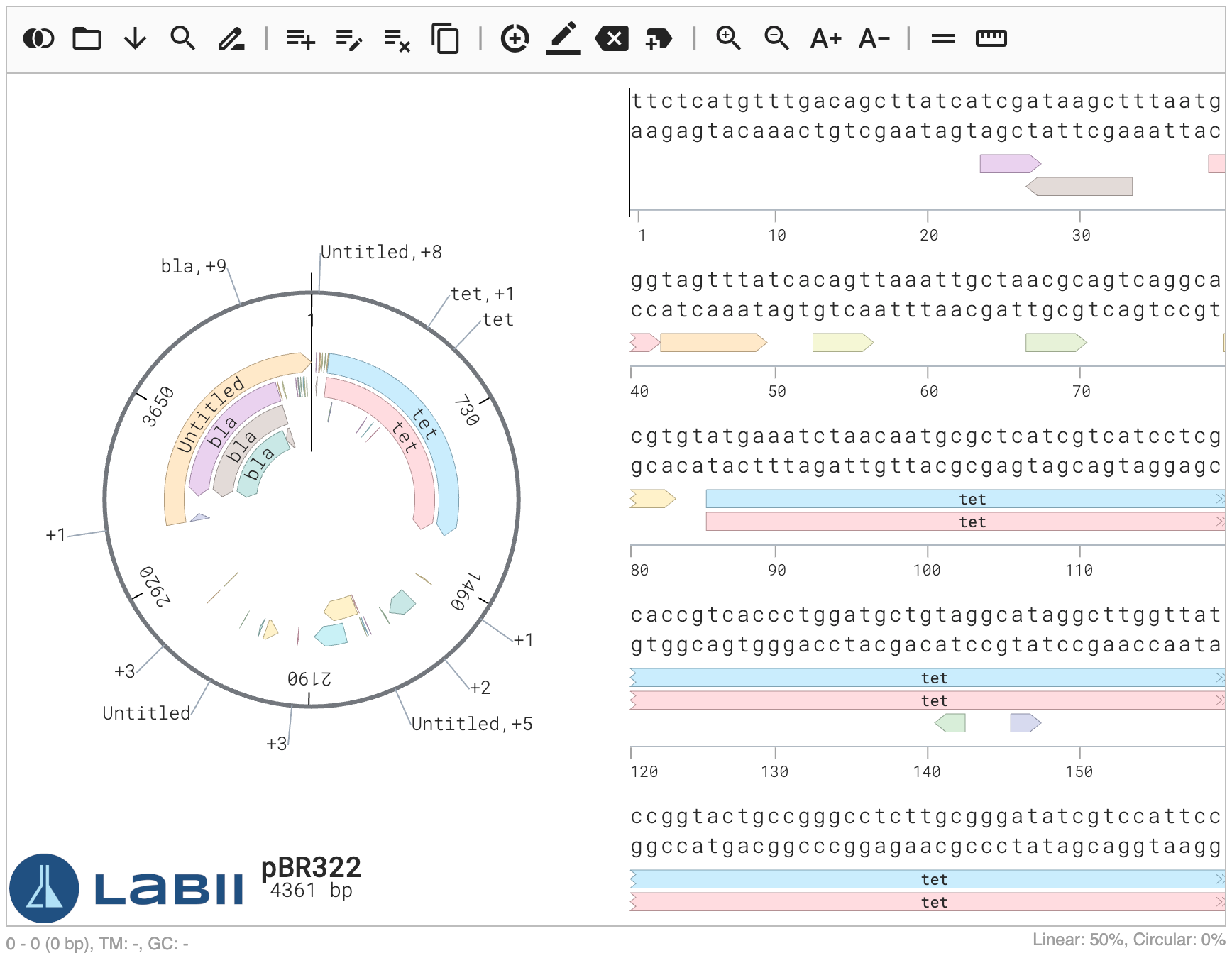
Linear
In the linear viewer, DNA sequences are displayed alongside features and axes. Zooming out allows you to see just features.
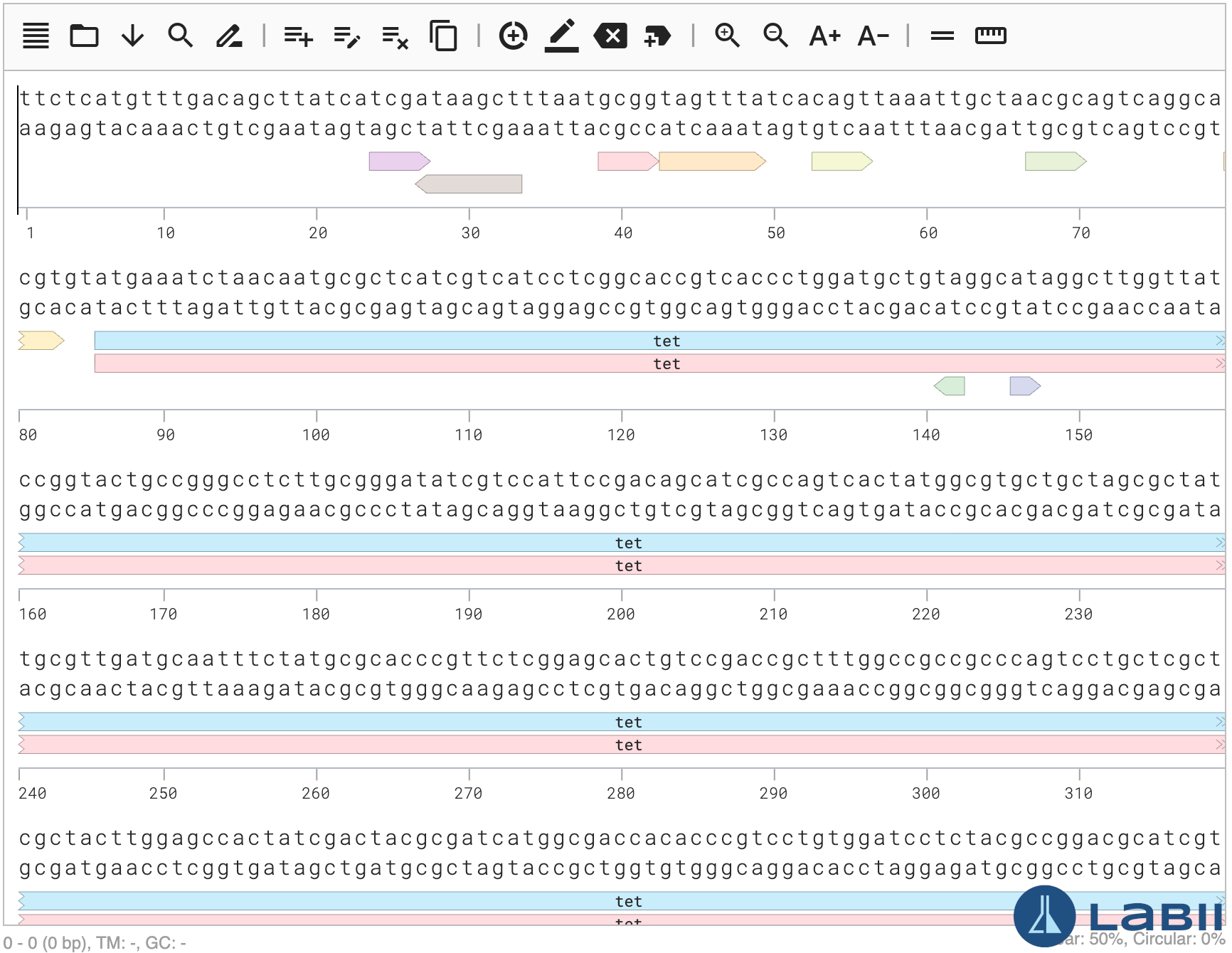
Circular
The circular view displays the plasmid map.
Features
Feature views show a list of features annotated to plasmid sequences. Other tools in the menu bar can be used to add, edit, or remove features. There are the following columns in the features table:
- Name - The name of the feature. Highlighting the name text with the feature's color.
- Type - The type of the feature.
- Start - The start position of the feature.
- End - The end position of the feature
- Direction - The direction of the feature. 1 as Forward, -1 as Reverse
Enzymes
On the enzymes view, you can see the digest enzymes used and their cut sites. The "Add enzymes" tool can be used to add, edit, or remove enzymes. It contains the following columns:
- Enzymes - The name of an enzyme
- Recognition site sequence - The enzyme recognition site sequence. The highlighted nucleotides indicate the position of the cut.
- Cut sites - Position of the enzyme cut sites on the current plasmid. Multiple numbers indicate multiple cuts. An empty value indicates no enzyme cut sites.
Load from a file
Data from an external plasmid file can be loaded into Labii Plasmid Editor. To do that:
Choose a file by clicking "Open" in the menu bar.
Or
Drag the file to the "cloud" icon. You can also select a file by clicking the "cloud" icon.
Supported file format:
- *.gb or *.gbk, NCBI GeneBank file.
- *.ab1, AB1 files mostly belong to Sequencing Analysis Software by Applied Biosystems.
- *.ape, ApE file.
- *.fasta or *.fas, a text-based format for representing either nucleotide sequences or amino acid sequences.
- *.json, JSON file exported from Benchling Molecular Biology Suite.
- *.xml, iGEM BioBrick file.
- *.seq, plain text files containing your sequence in FASTA format.
- *.sbd, sequence builder file.
- *.dna, SnapGene file.
Search
A sequence can be searched within a plasmid. You can use the search function to find the position of a given sequence. For instance, you can add a primer to the plasmid by searching for the primer's position and then clicking on "Add feature".
To conduct the search:
- Click the "Search" in the menu bar
- Provide a sequence to search in the Query field. The wildcards of the following can be used:
- y: c, t
- r: a, g
- w: a, t
- s: c, g
- k: g, t
- m: a, c
- d: a, g, t
- v: a, c, g
- h: a, c, t
- b: c, g, t
- x: a, c, g, t
- n: a, c, g, t
- Provide the maximum allowable mismatch between the query and a match.
- Click Submit
- The search results will be highlighted in yellow.
Change bases
Plasmid Editor allows the modification of Plasmid sequences.
To insert bases, click the position you wish to insert in the linear viewer, and then click "Insert bases at selection". Type or paste the nucleotides into the pop-out modal. Press Submit to submit.
The bases can be modified by selecting the sequences and clicking "Edit selection bases" in the menu bar. This will display the selected sequences in the pop-up modal. Make any changes and click Submit.
To delete selection bases, select the sequences and click "Delete selection bases".
You can copy selected bases by selecting the sequences and clicking "Copy selection bases".
Change features
You can also add, edit, and delete features.
In the menu bar, click "Add feature" and provide the Name, Type, Start position, End position, Direction, and Color. When you're done, click Submit. In addition, you can also select a feature in the linear view and click "Add feature", the start and end positions will be automatically filled in the feature form.
If you wish to edit a feature, select it and click "Edit this feature". Edit as necessary, then click "Submit".
You can delete a feature by selecting it and clicking "Delete feature".