Workspaces
Overview
A workspace is a particular aim that been carefully planned by an individual or a team. In Labii, a workspace serves as a container of records and is similar to a folder.
There are 3 different permission levels when joining a workspace:
| Permission | Description | Assign to |
|---|---|---|
| Admin | Can edit workspace, can view/edit records of the workspace | Workspace manager |
| Edit | Can view/edit records within a particular workspace | Workspace member |
| View | Can only view records of a particular workspace | Members who do not need edit permission |
The administrators can view all records even if they weren't granted any permissions at the workspace level. Edit permissions, however, are required for them to add a new record to the workspace or edit an existing record.
When a workspace is archived, all records become read-only.
Relationship between People, Team, Workspaces, Members, Records
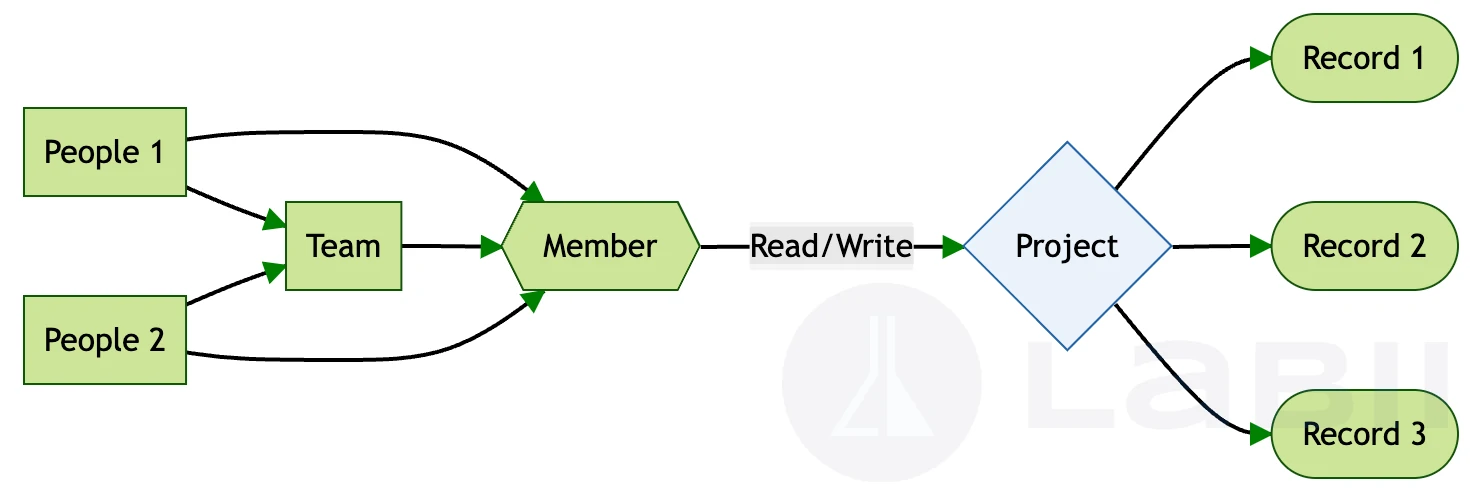
A workspace acts as a valve between users and records. If a user has Read/Write permissions for a workspace, he/she can read/write all records in that workspace.
- People can be grouped into Teams.
- A Member determines whether People or Team have Read/Write access to a Workspace.
- Each Record can be assigned to one or more Workspaces.
- When configured, People on the left can view/edit Records on the right.
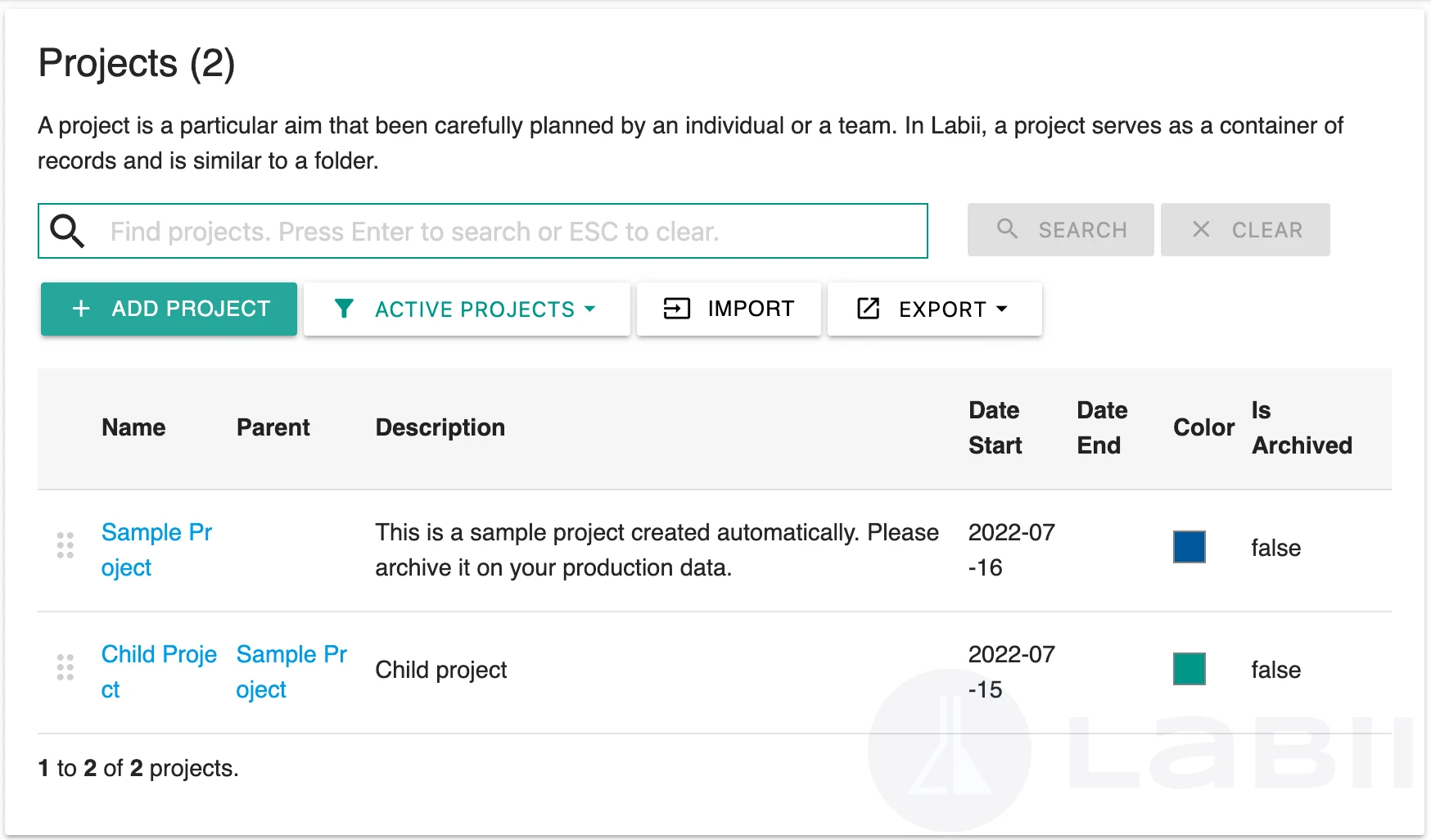
List of workspaces
Once a workspace is added, workspace managers can manage all workspaces within the list view of workspaces and can access it by clicking Settings at the side menu and then select Workspaces.
Search workspaces
You can search workspaces by typing a keyword into the search bar in the workspace list view, and then clicking Search. The search results can always be cleared by clicking the Clear button.
Filter workspaces
With the Filter function, you can limit the number of teams displayed. You can do that by clicking Active workspaces and then selecting a filter from the dropdown. Here are a list of filters:
- All workspaces. Filter to display all workspaces.
- Active workspaces. Filter to display the active workspaces.
- Archived workspaces. Filter to display the archived workspaces.
Workspace detail
Click a workspace name in the list view to see the detail of a workspace. Here are the fields that can be updated by clicking the pencil icon:
- Overview
- Sid - Static encrypted identifier.
- Name - To change the name of the workspace
- Description - Give a description of the workspace, such as "Protein Team Workspace"
- Parent - The parent workspace of the current workspace
- Date Start- The start date of this workspace
- Date End - The end date of this workspace
- Order - The order to display the workspace
- Color - Color of folder icon
- Updated By - The Personnel who updated any of the fields listed above
- Date Updated - automatically captured in the background within Labii ELN & LIMS when changes are made
- Permissions
- Open to Organization - If checked, all members of the organization can view/use the workspace. The default setting is false/uncheck the box
- Open to Public - If checked, anyone has Labii account can view/use it. Check this option if you are vendors or reagent suppliers
- Settings
- Color - Color of folder icon
- Should Open In New Tab - If true, a record will open in a new tab when clicked from the list.
- List View
- Query - An optional query applied whenever the workspace list view is opened, such as
is_locked=false. See Workspace query.
- Query - An optional query applied whenever the workspace list view is opened, such as
- Metadata - For each metadata, the label and value need to be provided. Multiple metadata can be added via clicking Add Metadata button
- Archive this workspace
- Is Archived - Ability to archive a member, if checked, the member’s access will be blocked
Workspace query
Use Query to control which records are shown by default when someone opens the workspace list view. When a query is provided, it is appended to the workspace's record query, so only records in this workspace that also match the query are listed. When the field is empty, all records in the workspace are shown.
The query uses the same format as the search query. Combine multiple conditions with &:
# Only show unlocked records
is_locked=false

# Only show unlocked records from one table
is_locked=false&table__sid=ABCD1234
- The query also applies when searching or using filters in the workspace list view. Filters are combined with the workspace query.
- The query only changes which records are displayed. It does not change workspace permissions.
- After the query is updated, reload the organization to apply the change in the workspace list view.
Add workspace
To add a new workspace, do the following:
- Click the menu icon on the top left
- Click Settings
- Click on Workspaces
- Click the “+” icon in the navbar
- Fill in the form and click submit
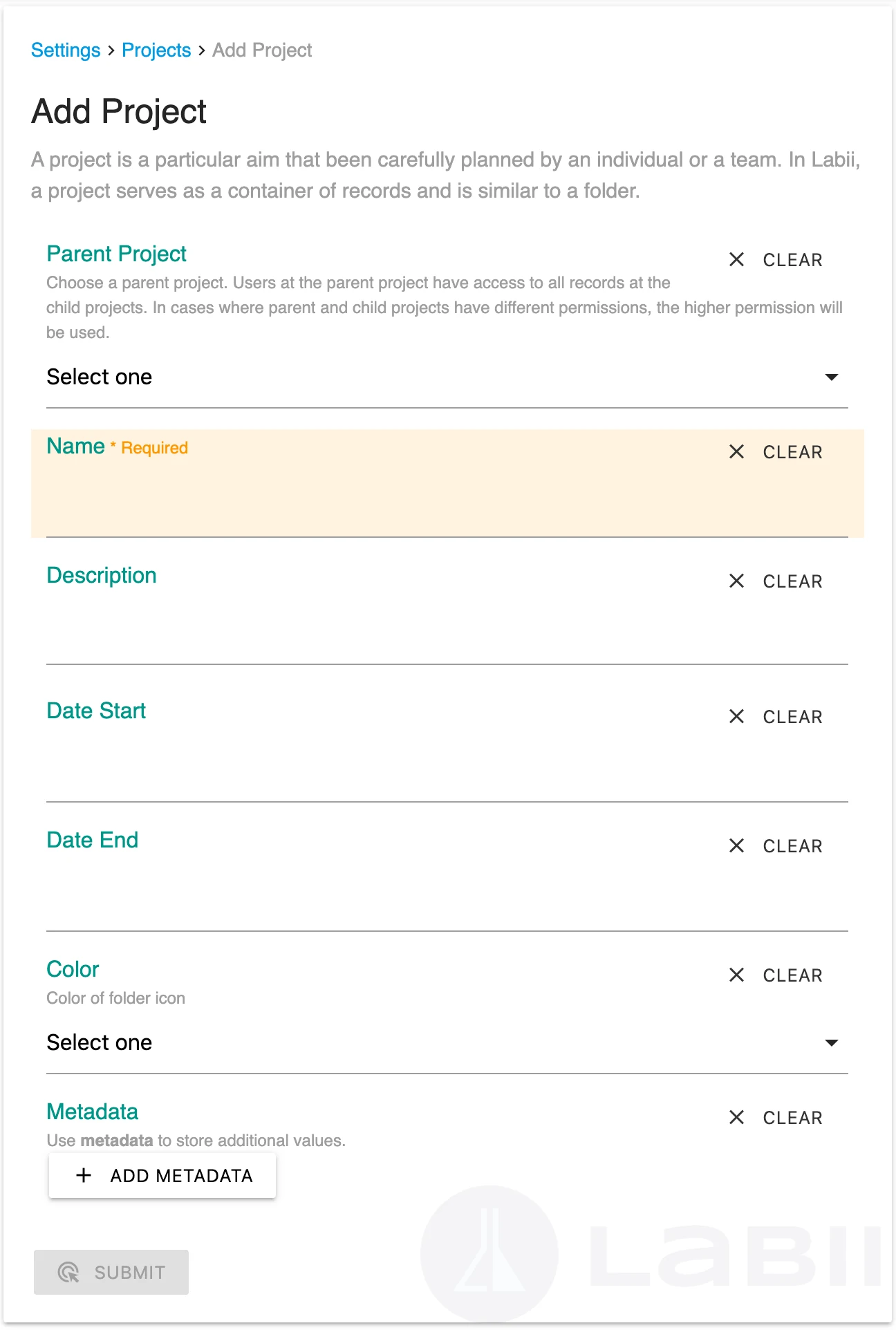
When a parent workspace is selected, the new workspace will carry over the same permission settings. However, you can always modify the permission for the new workspace.
Change workspace order
You can update the workspace order by dragging the workspace to the desired position in the workspace list view.
Import workspaces
Multiple workspaces can be created simultaneously using Import. You can do this by clicking Import in the workspace list view.
Export workspaces
You can export a list of workspaces by clicking Export button and select one option from the dropdown.
Delete workspace
It is not possible to delete a workspace, but you can archive it or rename it and use it in another workspace.