Upload Files
In the Files table, the standard Add Record button is replaced by Upload Files. This action opens a two-step wizard where you choose the workspaces that will store the files and then select the files to upload.
Upload files
Open the Files table and click Upload Files.
Under Choose workspaces, select one or more workspaces where the uploaded files should be available. Click Next.
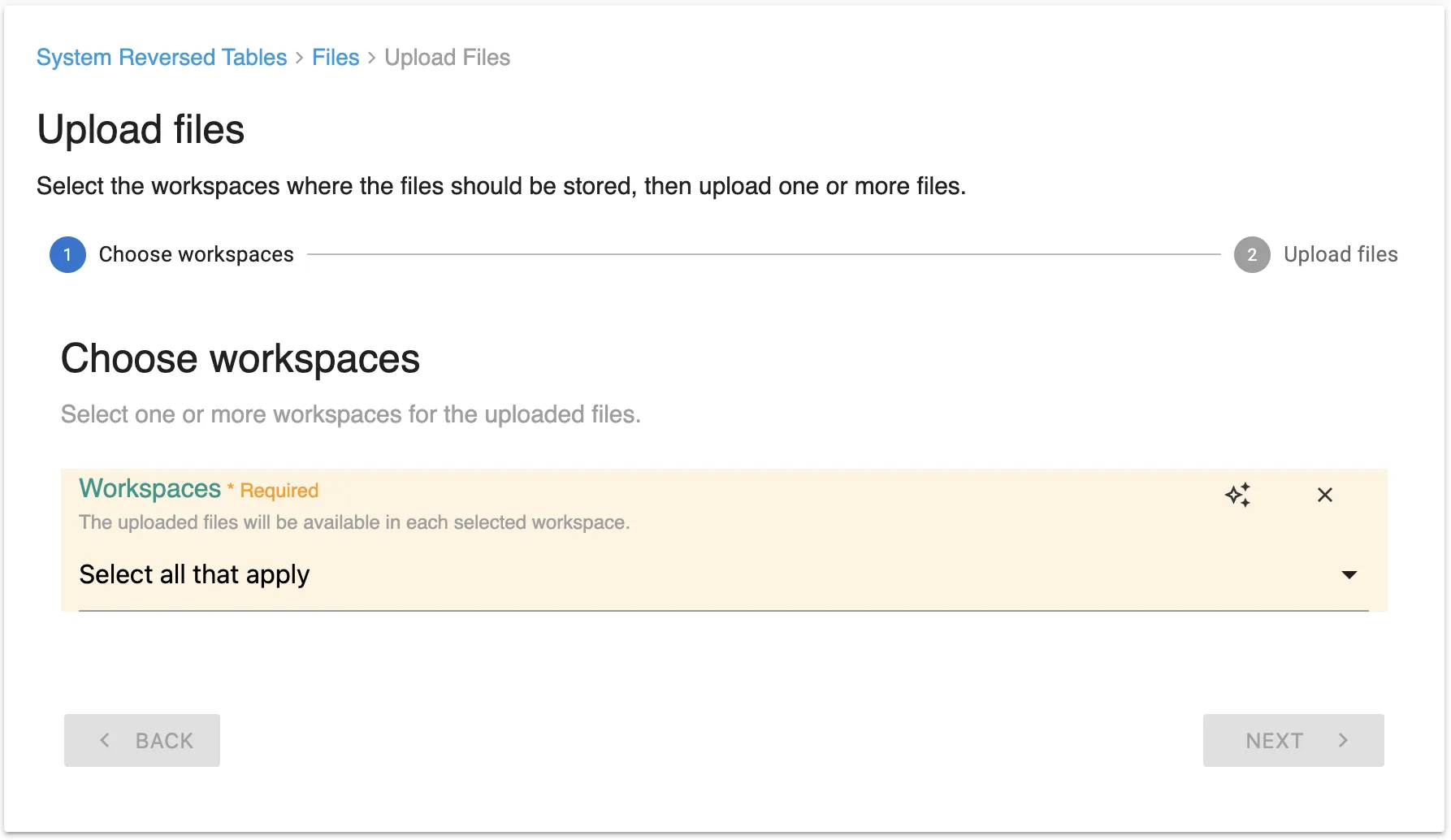
Select one or more workspaces for the uploaded files.
Under Upload files, add one or more files by dragging and dropping them into the upload area or by clicking the upload area to select files from your device.
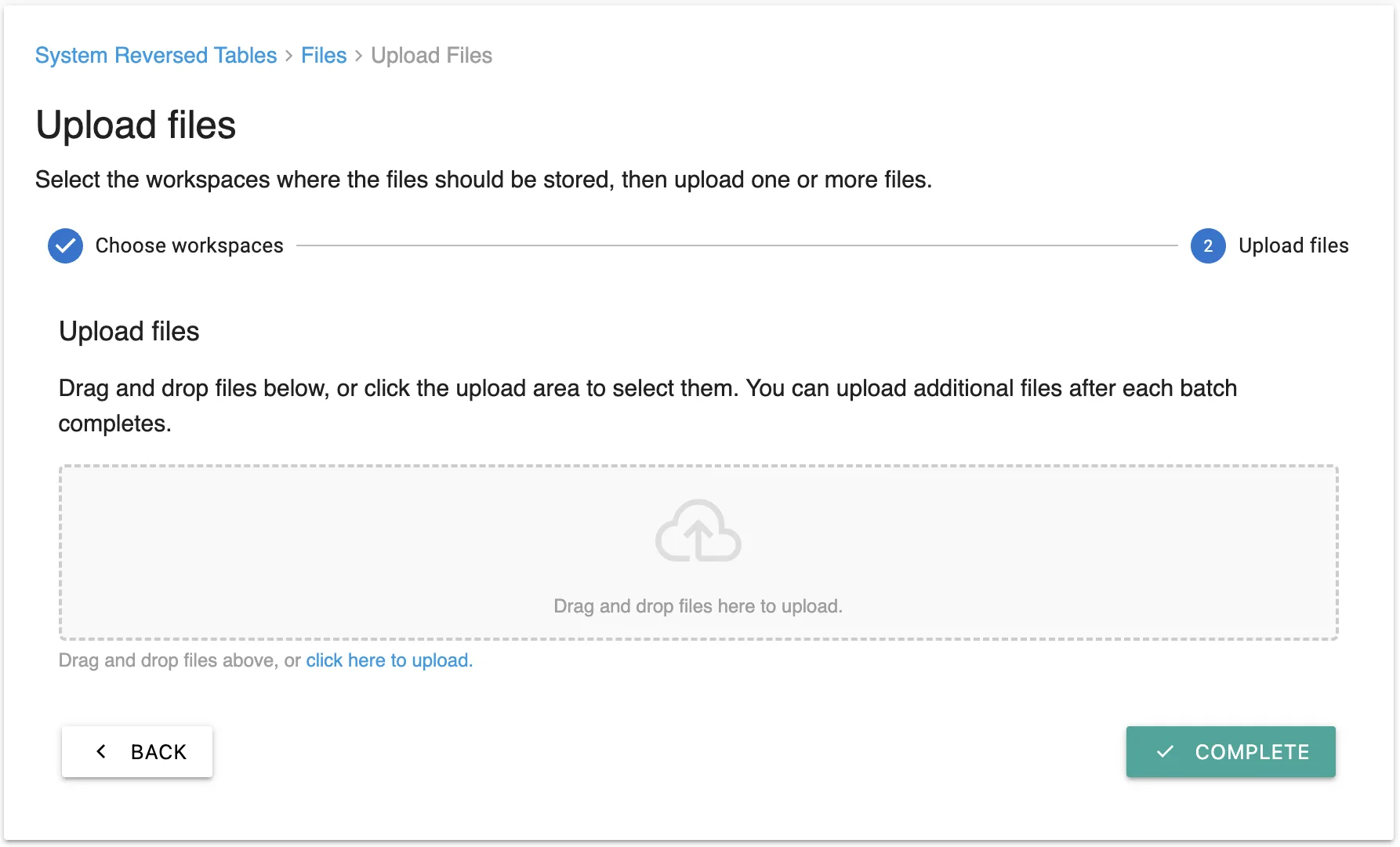
Drag and drop files or click the upload area to select them.
Click Complete. Labii opens the file list view, where you can see the uploaded files.
You can upload additional files after each batch completes. Use Back if you need to change the selected workspaces before finishing.