Dashboard
Overview
A dashboard is a visual display of all of your data. With Labii, you can customize the dashboard with widgets to monitor key metrics, track experiment progress, and gain at-a-glance insights into your laboratory operations.
Dashboard can be accessed by clicking Dashboard from the side menu. For a full list of available dashboard widgets, see the Dashboard Widgets reference.
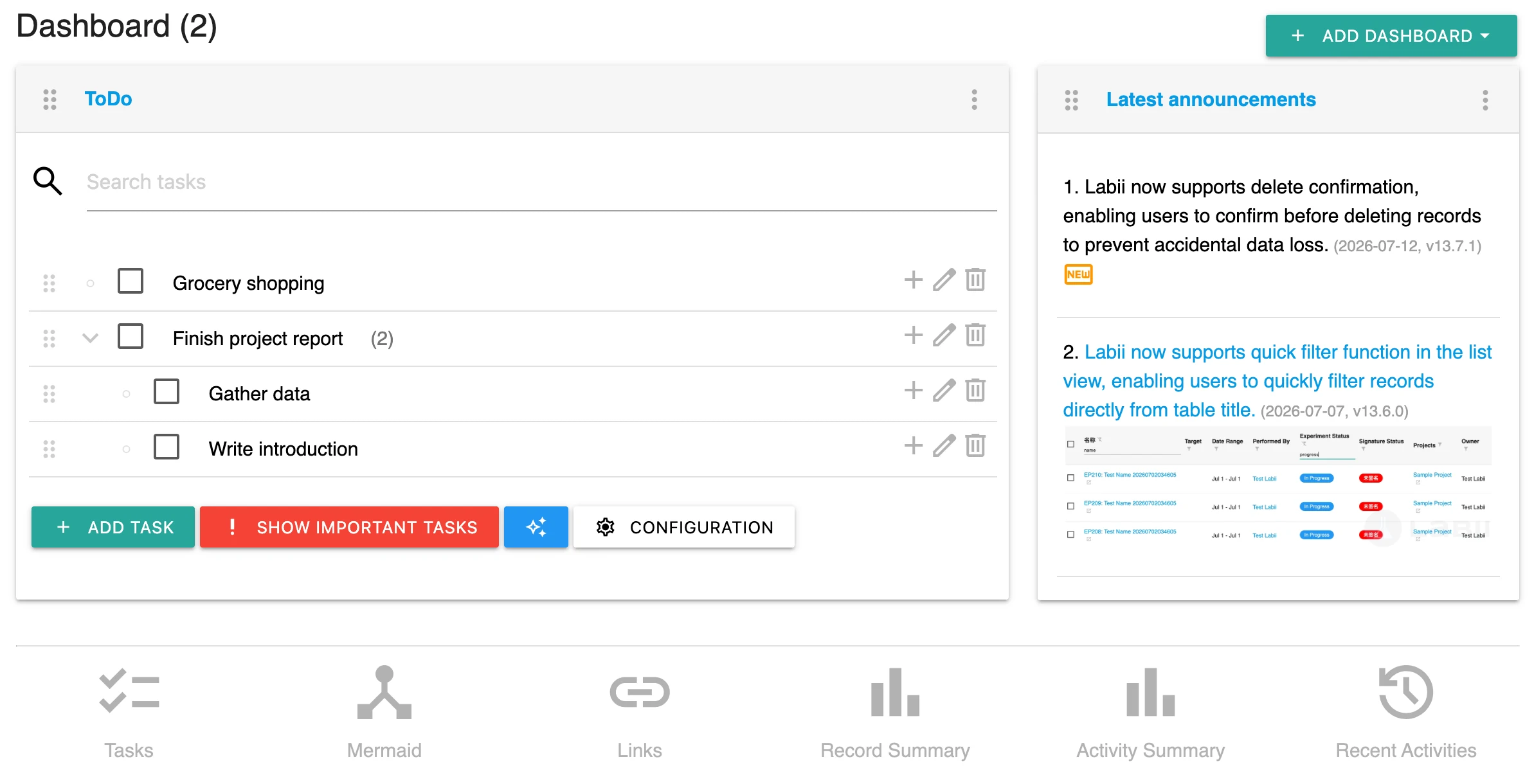
Add widget
Click Add widget to add a widget to your dashboard. Select a widget from the drop-down menu or click More widgets to browse all available widgets. The widget will be appended to the bottom of the dashboard once added.
When adding a widget, configure the following options:
- Name — Provide a display name for the dashboard item.
- Size — Set the size of the dashboard item. Widgets can be arranged in different sizes to create a structured, readable layout.
- Height — Set the widget height in pixels. For best alignment, widgets on the same row should use matching heights.
- Display as Icon — Display this dashboard as an icon instead of loading its content on the dashboard page.
Dashboard view
In dashboard view:
- If Display as Icon is set to
false, the dashboard content is rendered directly on the dashboard page. - If Display as Icon is set to
true, the dashboard is shown as an icon.
If too many dashboards are rendered as full widgets, dashboard loading can become slow. For dashboards that are not frequently used, set Display as Icon to true.
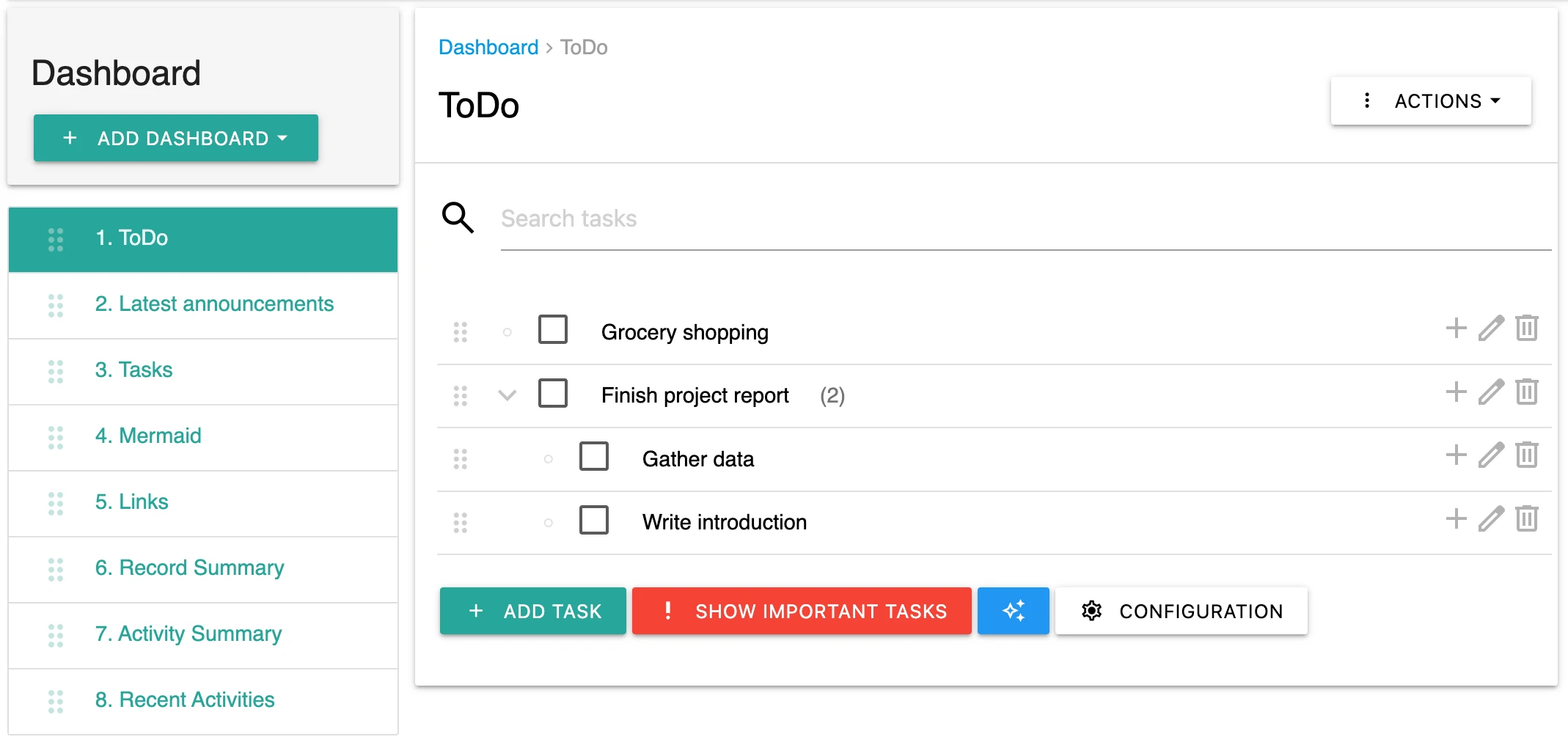
Dashboard detail view
Clicking a dashboard title or clicking a dashboard icon opens the dashboard detail view. The detail view displays the full dashboard content on one page.
In the detail view, the side menu shows a list of dashboards so users can quickly switch between dashboards.
Edit widget
To change the name, size, height, or icon display behavior of an existing dashboard item, click the more actions icon (⋮) on the widget and select Edit widget.
Remove widget
To remove a dashboard item, click the more actions icon (⋮) on the widget and select Remove widget.
Order widget
To reorder widgets, click and hold the drag handle on a widget, then drag and drop it to the desired position.
Print
Click Print to print the current content of the dashboard.
Install to all users
If you need to apply a specific dashboard configuration to all users in the organization, use the Install to all users function. This ensures that the same widget, along with its associated data, is installed for every user. If a user already has the widget in place, this function will update both the widget data and size for their existing instance.
This function is exclusively available for administrators.
Install to administrators
If you need to apply a specific dashboard configuration only to administrators, use the Install to administrators function. This ensures that the widget is installed exclusively for users with administrator roles, without affecting regular users. If an administrator already has the widget, this function will update both the widget data and size for their existing instance.
This function is exclusively available for administrators.
Data caution
Dashboard data is not regulated. Dashboards can be deleted. Use dashboard configuration and data with caution.