Add records in bulk
Overview
The bulk record addition feature in Labii enables you to create multiple records simultaneously, significantly streamlining data entry for repetitive or similar information. This functionality is particularly valuable when working with:
- Multiple samples from the same experimental batch
- Serial inventory items of the same type
- Sets of tasks with similar parameters
- Collections of related experimental data points
By eliminating redundant manual entry, bulk addition reduces errors, saves time, and increases laboratory productivity.
Bulk addition is ideal when you need to create 5 or more similar records at once. For smaller quantities, consider using the standard single-record addition method.
Starting bulk record addition
You can initiate bulk record addition from three different locations in Labii:
From table list view
Navigate to the Table List View for your desired record type
Click the Add xxx dropdown button
Select Add x records in bulk from the dropdown menu
From selected records
In the Table List View, select one or more existing records by checking their boxes
Click the Use selected dropdown button
Choose Add records in bulk from the options
From a ForeignKey section
Open a record containing a Record List by ForeignKey section
Click the Add xxx dropdown within that section
Select Add x records in bulk
Using the bulk addition interface
The bulk addition interface uses a step-by-step wizard approach to guide you through the process:
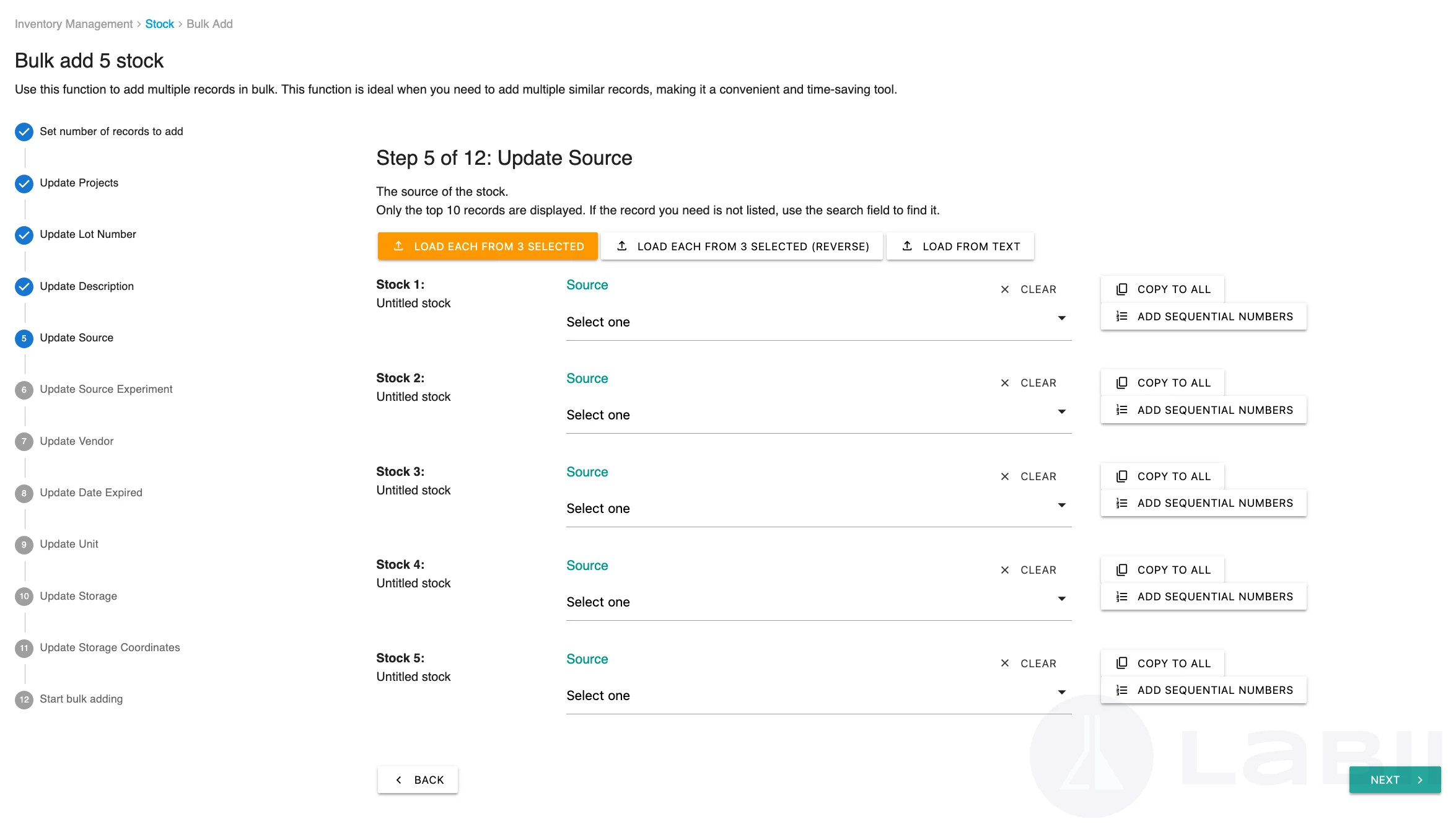
The bulk addition interface with step progress sidebar and main data entry area
Interface components
- Left sidebar: Displays all steps and tracks your current progress
- Main area: Shows data entry fields for the current step
- Navigation buttons: Allow you to move forward or backward through steps
- Submit options: Complete the process with all fields or skip remaining steps
Workflow structure
Initial step: Specify the number of records to create
Field steps: Enter values for each field in your records. Each step corresponds to one field in the record structure
Final step: Monitor the progress as records are created
Upon completion, you are redirected to the Table List View showing your newly created records
You can use Submit and Skip Remaining Steps to complete the bulk addition without filling in all optional fields. Required fields must still be completed.
Data entry features
Load from selected records
When you have pre-selected records, you can use their data to populate fields in your new records.
Click Load from x selected to copy data from selected records to ForeignKey fields
Optionally, use Load from x selected (reverse) to load data in reverse order
You can also generate selected records by passing a search query in the URL parameter. The system will load matching records and set them as selected.
Load from text
Import data directly from text sources to quickly populate multiple values:
Click the Load from Text button for the field you want to populate
Paste text copied from spreadsheets, tables, or other applications
Select the appropriate separator (tab, comma, line break, etc.)
The text is automatically split into individual values and distributed across your records
For ForeignKey fields, you can paste item names instead of record values. When a pasted name matches an existing item, Labii searches for the matching record and assigns the correct value automatically.
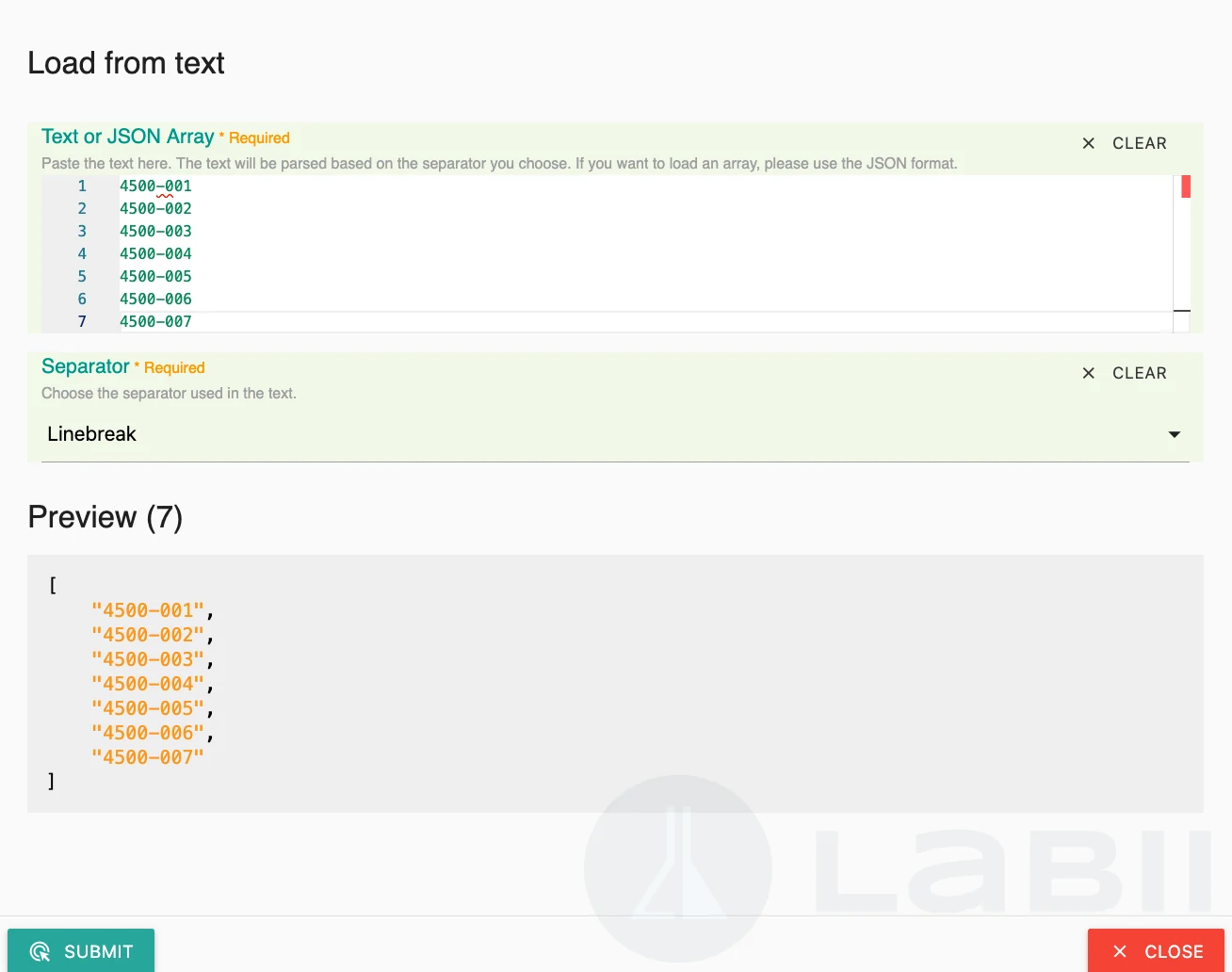
Load from text interface for importing data from external sources
Alternative data formats
- JSON arrays: Paste data in JSON array format:
["value1", "value2", "value3"] - File upload: Drag and drop text or JSON files directly into the file drop box to load their contents
Loading from text is particularly efficient when transferring data from Excel spreadsheets or CSV files. Simply copy a column of values and paste it directly into Labii.
Copy to all records
For fields where most records share the same value:
Enter the desired value in the first record's field
Scroll to the right side of the data table
Click the Copy to all button for that field
The value is copied to all records below the current one
Manually adjust any records that require different values
This feature is especially useful for common fields like project associations, dates, or categorical values that remain consistent across multiple samples or experiments.
Add sequential numbers
Automatically generate sequential numbering for sample IDs, specimen numbers, or other sequential identifiers:
Navigate to the field where you want sequential numbers
Click the Add sequential numbers button
Sequential numbers are automatically generated starting from the current row downward
Sequential numbering only affects the current field and records below it. Records above the current position are not modified.
Advanced configuration
Minimum items setting
Adjust the default minimum number of records for bulk addition:
- Default value: 5 records
- URL parameter:
min_items - Example:
?min_items=10to set minimum to 10 records
Default values
Pre-populate fields with default values using the URL parameter:
- Parameter:
bHN6R2RhdGFud0ZP - Usage: Pass default field values in the URL query string
Predefined values
Provide specific predefined values for fields using the URL parameter:
- Parameter:
ImRhdGFfYXJyYXki - Format: JSON array format, such as
["value1", "value2", "value3"] - Usage: Values are automatically filled when creating new records
Form link
Generate a reusable link to the current bulk-add form with all currently filled values.
In the bulk-add interface, click Documentations
Find and copy the Form Link for the current form
Open the copied link to regenerate the same form with the current filled values
This is useful when you need to repeat similar entries, such as adding the same reagents during ongoing experimentation.
Hidden fields
Hide specific fields from the bulk addition interface:
- Parameter:
dUJJUGZpZWxkc19oaWRkZW53Rk9Y - Usage: Specify field names to be hidden from the form
Advanced configuration parameters are typically set by administrators or when using automated workflows. Contact your system administrator for assistance with custom URL parameters.
Best practices
- Plan ahead: Determine all required field values before starting the bulk addition process
- Use templates: Load data from selected records to maintain consistency
- Verify data: Review the final step carefully before confirming the bulk addition
- Start small: Test with a smaller batch first when working with complex record structures
- Copy wisely: Use "Copy to all" for truly consistent values to avoid unnecessary corrections later
- Sequential IDs: Establish a numbering scheme before using sequential number generation