Workspace List View
Overview
The Workspace List view of Labii electronic lab notebook (ELN) and laboratory information management system (LIMS) displays a list of records for a workspace.
If you can see a workspace, means you already have permission to view all content of the workspace.
The list view is independent for each workspace and has the following tabs:
- Content - Display a list of records for the workspace as well as the sub-workspaces.
- Properties - Workspace settings. Changes can only be made by administrators. Available to Administrator only.
- Permissions - Display a list of permissions for the workspace. Available to Administrator only.
Open workspace list view
Workspace list view can be opened by clicking the Workspaces/Folders from the side menu and then click the workspace name.
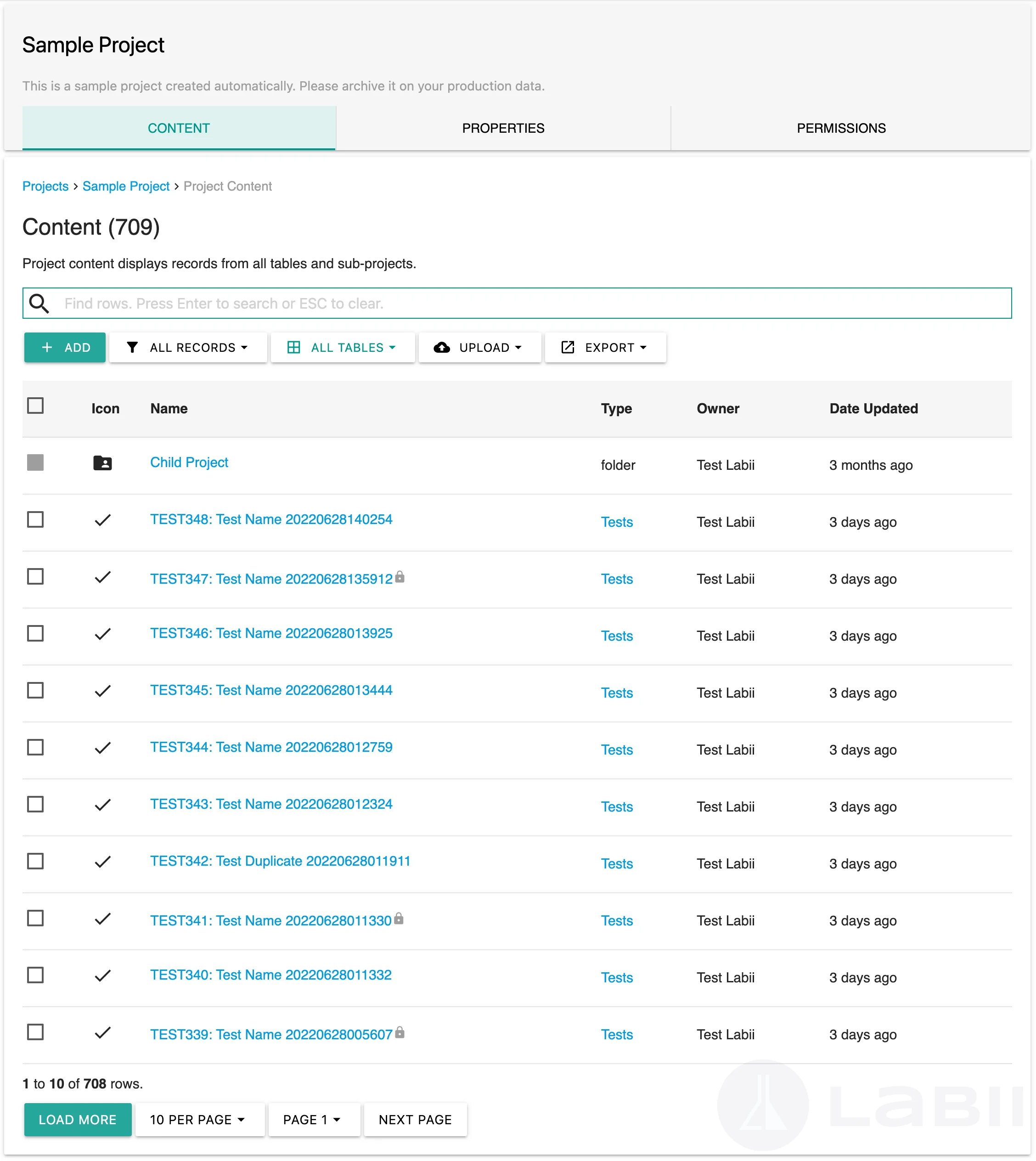
Tabs:
- Content - Workspace content displays records from all tables and sub-workspaces.
- Properties - Displays all configuration and properties about the workspace. Learn more
- Permissions - Displays a list members who can access the workspace. Learn more
Add record or workspace
Click + Add to add a record or a sub-workspace. It will open the same interface as the Add button on the side menu.
Search records
Learn more about Search at list view.
Filter records
Filters can be applied to the workspace list view to specify a subset of the results. When a filter is selected, the button name changes to the filter name and the text color changes to teal.
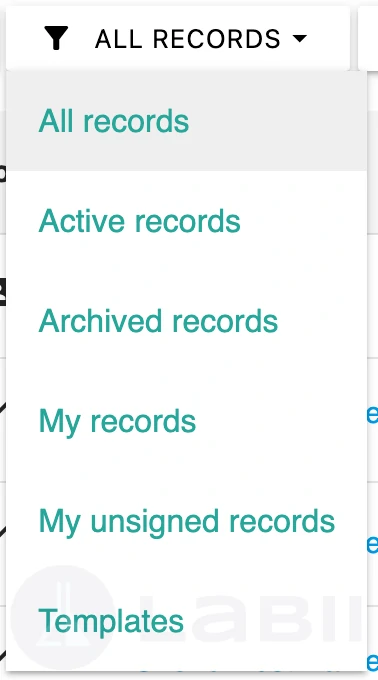
- All records. Filter to display all records in the workspace.
- Active records. Filter to display the active records that is in the workspace.
- Archived records. Filter to display the archived records in the workspace.
- My records. Filter to display the records created by you.
- My unsigned records. Filter to display the records that need to be signed by you.
- Templates. Filter to display list of records as templates.
Filter by tables
The records can be filtered by tables. Click All tables and select a table from the dropdown.
Save as default
If you would like a different view to be loaded when clicking on the workspace, you can use the Save as default feature.
- Save as my default
- Save as workspace default
Personnel default data will be loaded if both personnel and workspace levels are saved.
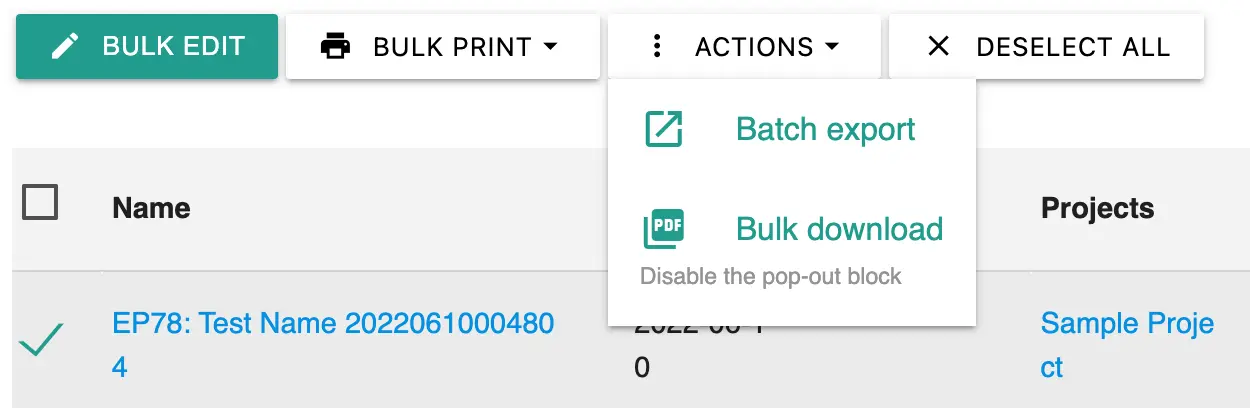
Batch operations
A batch operation is a function or a method that processes multiple experiments in a single operation. Labii supports the batch operations for Editing, Printing, and Downloading. Select one or more experiments to get started.
Upload
You can use this method to upload files and create a record at the same time. The uploaded files will be inserted directly into the record's sections/notes.
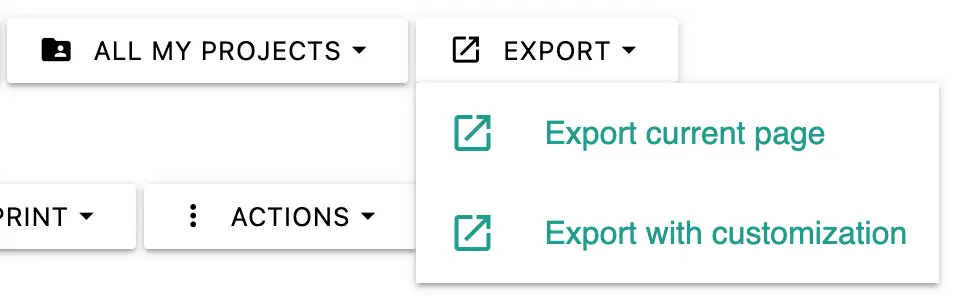
Export
Labii allows exporting data in the list view to a *.tsv file. Two exporting options are supported:
- Export current page. Export data that is same as the current list view.
- Export with customization. Customize the number of records, the columns to be exported