Scan
Overview
Labii includes built-in barcode and QR code scanning to help you find records or add records faster.
You can use either your device camera or an external scanner.
Scan page
Use the Scan page to scan barcodes or QR codes directly.
Click Scan in the navbar.
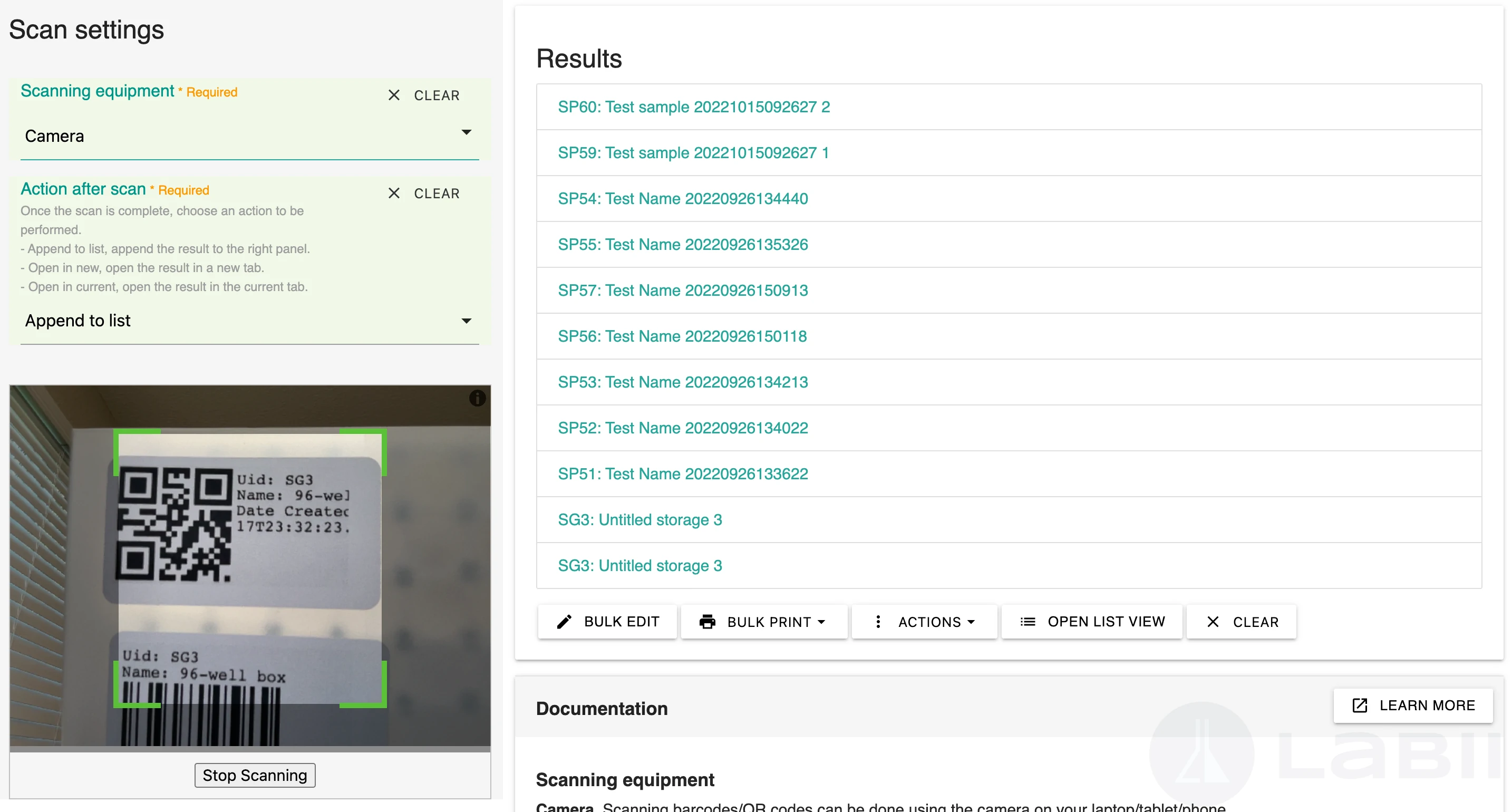
Select your input source (camera or external scanner).
Scan the barcode/QR code.
Once the scan is completed, Labii executes the configured post-scan action.
Scanning equipment
Labii supports both built-in cameras and external commercial scanners.
- Camera: Scan using the camera on your laptop, tablet, or phone. On mobile devices, you can choose front or back camera.
- Scanner: Use any compatible external scanner by connecting it to your device and scanning directly.
Action after scan
You can configure what happens after each scan:
- Append to list: Adds results to the right panel for bulk processing.
- Bulk edit, same as Batch operations
- Bulk print, same as Batch operations
- Actions, same as Batch operations
- Open list view
- Clear
- Open in new: Opens the matched result in a new tab.
- Open in current: Opens the matched result in the current tab.
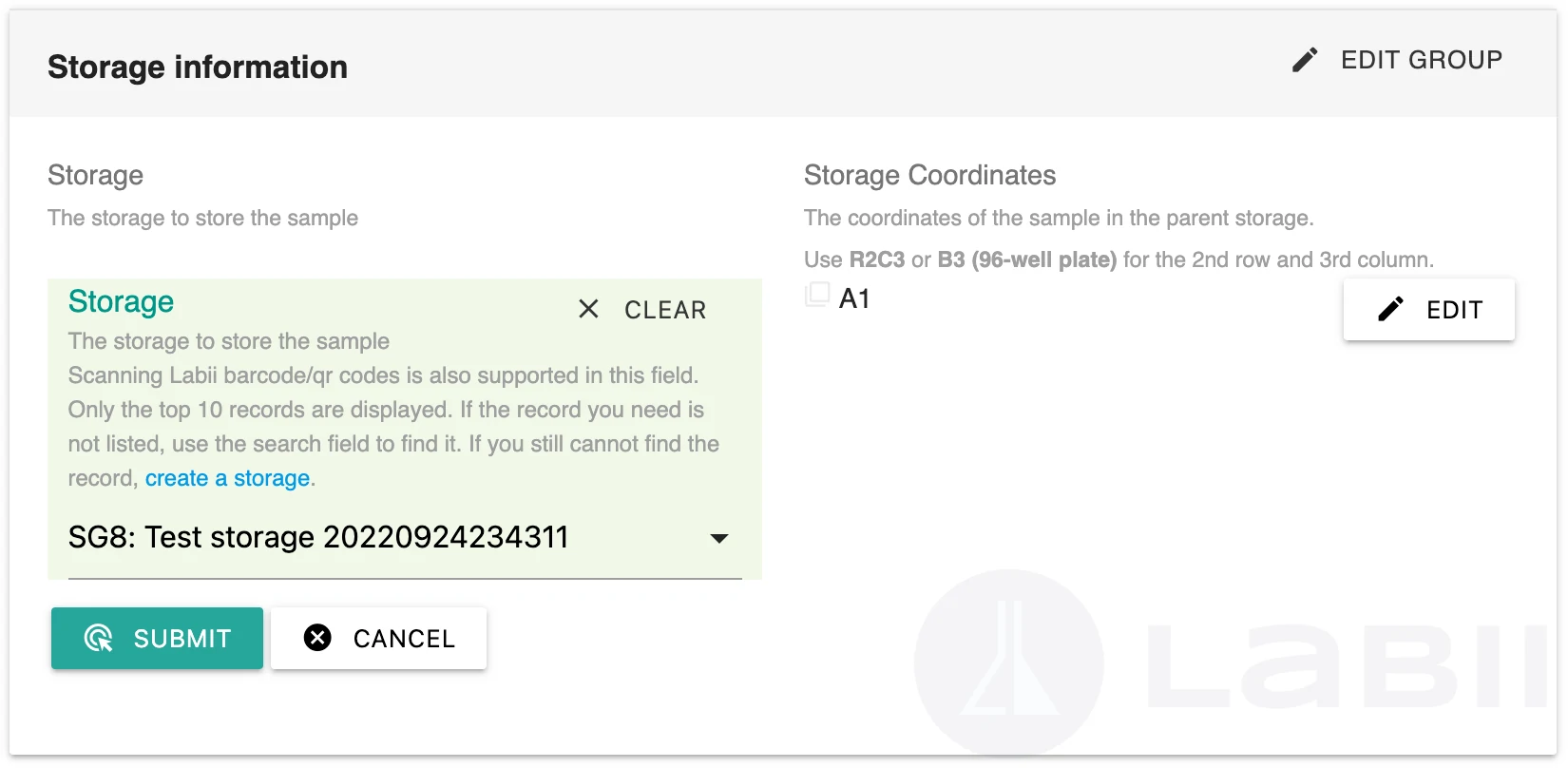
ForeignKey(s)
ForeignKey and ForeignKeys widgets also support scanning, so you can select records automatically.
Example: to assign a storage box to a sample, scan the storage box barcode from the ForeignKey(s) widget.
Open a form that contains a ForeignKey or ForeignKeys field.
Open the scanner from that field.
Scan the target record barcode/QR code to select it.