Permissions
Overview
Permission is the act of letting a user read or write a record in Labii Electronic Lab Notebook (ELN) and Laboratory Information Management System (LIMS).
Labii supports both top-down and bottom-up permission structures. With top-down permission, the administrator or PI determines everyone's permissions in the company. As for the bottom-up, everyone controls the permissions of their folders/workspaces.
Permissions for Labii are controlled both at the organization and workspace level. Users can be assigned to the following roles:
is_administrator=true, administrators have full control over the account, can create workspaces and view all records.is_readonly=true, then readonly users can only be granted Read permissionis_archived=true, archived users cannot access any data.
In the bottom-up permission structure, any member who is not a read-only user can create their own workspaces and share them.
Permissions can be assigned to teams and individuals within a workspace:
permission=Admin, the workspace manager(s). Administrators can update workspace settings, create sub-workspaces, and update member access.permission=Edit, Team members and people with Edit permission to the workspace can add new records and edit existing records.permission=View, Users with the View permission to the workspace can read the record.
Open permissions view
Similar to the columns view, the permissions view can be accessed by simply clicking on the "Permissions" tab when a record is opened.
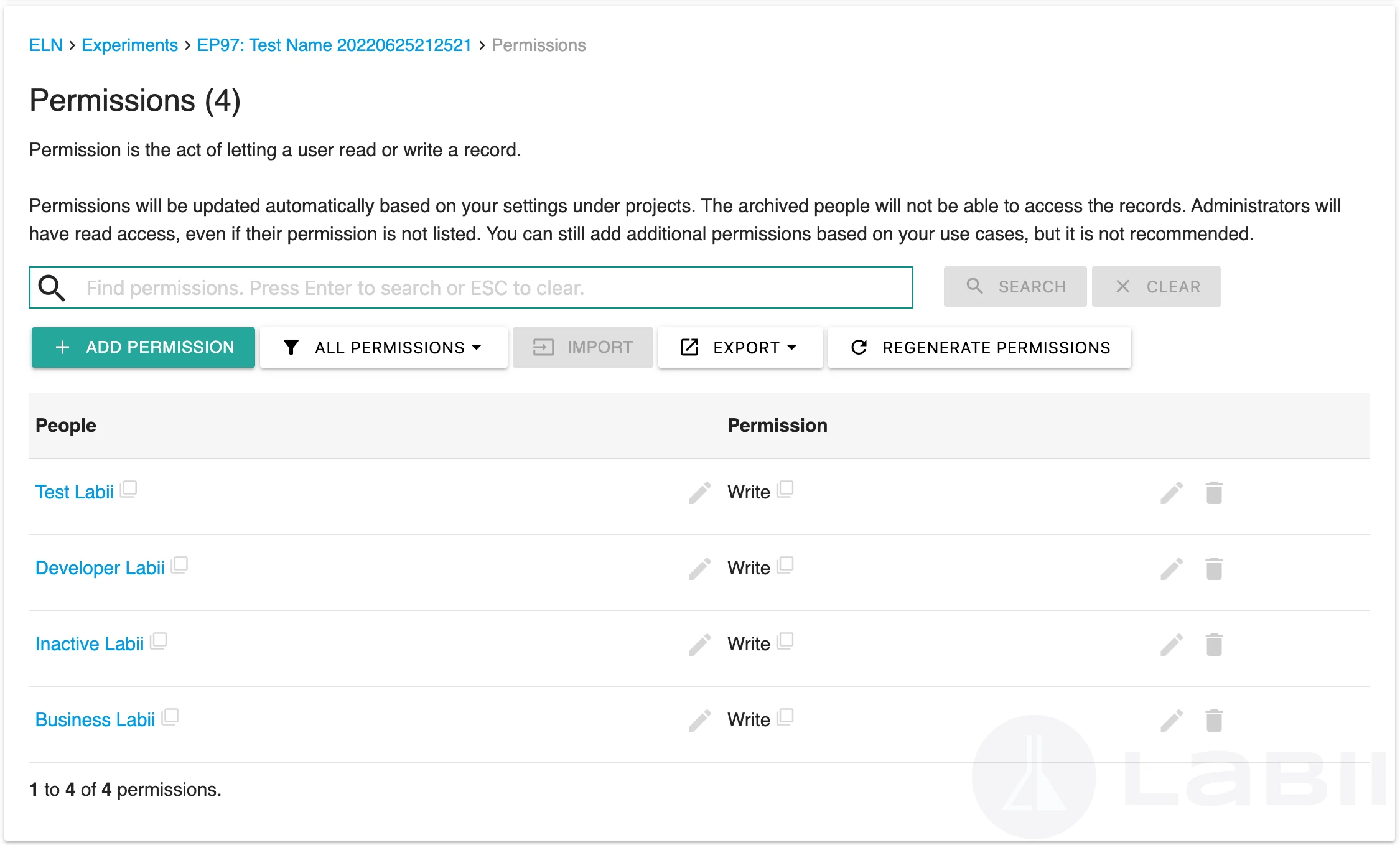
Search permissions
You can search teams by typing a keyword into the search bar in the permission list view, and then clicking Search. The search results can always be cleared by clicking the Clear button.
Filter permissions
With the Filter function, you can limit the number of permissions displayed. You can do that by clicking All permissions and then selecting a filter from the dropdown. Here are a list of filters:
- All permissions. Filter to display all permissions.
- My permissions. Filter to display the permissions for you.
- Write permissions. Filter to display the permissions can write.
- Read permissions. Filter to display the permissions can read.
How does permission generated
Permissions are generated automatically based on your permission settings at the organization and workspace levels. These are the typical events that trigger the generation of permissions.
Organization level:
- New people added.
- Change the is_administrator status of a people
- Change is_archived status of a people
- Change is_readonly status of a people
- Change team members
- Change is_archived status of a team
- Delete team
Workspace level
- Change is_archived status of a workspace
- Change the team/people of the workspace member
- Change the permission of the workspace member
Record level
- New record is added
- Change the workspaces of the record
Add permission
According to your organization and workspace settings, permissions will be automatically updated. It is usually not recommended to add a record-level permission manually. After the above events are updated, permissions added manually could be wiped out.
The add permission function can be used if you need to give a temporary permission to a user. To add a permission, click "+Permission". This will display a form.
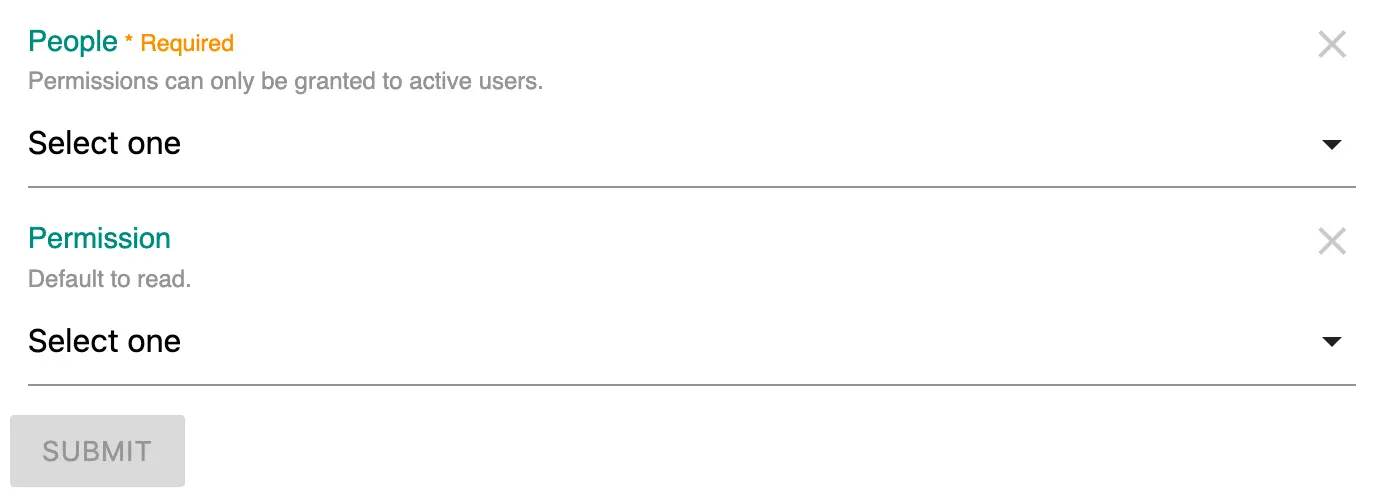
- Select a people from the dropdown menu
- Choose a Read or Write permission
- Click Submit button
Edit permission
It is also not recommended to change the permissions manually. Any change in permission could be erased by any of the above events.
To update a permission temporarily:
- Click the pencil icon (
 ) next to a people or a permission
- Choose a new people from the dropdown or choose a new permission from dropdown.
- Click Submit button.
Delete permission
Likewise, deleting permissions is not recommended. Deleted permissions will be restored when one of the above events occurs.
The temporary permission you added can, however, be removed using this function. Click on the "delete" icon ( ) next to a permission to remove it.
Regenerate permission
You can regenerate permissions if you believe that the current list of permissions is not accurate based on the organization's and workspace's permission settings. Click the "Regenerate Permission" button to regenerate permissions