Kanban Board
Specs
| Label | Value |
|---|---|
| Version | 1.0.0 (updated on 2026-11-27) |
| Developer | Labii Inc. |
| Type | Dashboard |
| Support Configuration | Yes |
Overview
The Kanban Board widget displays the records of a table as a kanban board on your dashboard. You choose a column that uses the Select widget, and each option of that column becomes a kanban column. Every record appears in the kanban column that matches its value, so you can see at a glance how work is distributed across stages such as status, category, or priority.
You can drag a record from one kanban column to another to change its value without opening the record. The board is useful for tracking samples, experiments, orders, or any records that move through a defined set of states.
Training Video
Watch how to configure the Kanban Board widget and move records between kanban columns.
Use Cases
- Status Tracking: Follow records through stages such as To do, In progress, and Done.
- Sample and Material Triage: Group materials or samples by type or condition and move them as they change.
- Request Queues: Monitor incoming requests by priority or assignee group and reassign them by dragging.
- Workload Review: Compare the record count in each kanban column to find bottlenecks.
Configuration
Initial Setup
Open the dashboard where you want to add the widget.
Click Add Widget and select Kanban Board from the dashboard widgets catalog.
Click Edit on the widget and complete the settings described below.
Click Submit to display the board.
Settings
- Table (required on global dashboards): Select the table whose records appear on the board. Selecting a table updates the Column dropdown. This setting is not shown on a table dashboard, which always uses its own table.
- Query (optional): Enter a query to limit the records, for example
is_archived=false. When empty, the board shows records that are not archived. - Column (required): Select a column that uses the Select widget. Only Select columns of the chosen table are listed. Each option of the column becomes a kanban column, in the same order as the options.
- Kanban column width (optional): The width of each kanban column in pixels. The default is
280. The height of the board follows the dashboard height.
The kanban columns, their order, and their colors come from the options configured on the Select column. To add, rename, reorder, or recolor a kanban column, update the options of the Select column.
Read-only View
Kanban Columns
- One column per option: The board shows one kanban column for each option of the selected column, in option order.
- Header color: When an option has a color, the kanban column header uses that color.
- Record count: The header shows the number of records in the kanban column.
- No value column: When some records have no value, or a value that does not match any option, a No value column appears first.
- Horizontal scrolling: When the kanban columns are wider than the dashboard, scroll left or right to see the rest of the board. Each kanban column scrolls vertically on its own.
Records
- Record name: Each record shows its UID and name, the same as in the list view. Click the name to open the record, or use the icons to open it in a new tab or copy its name.
- Load more: Each kanban column shows 10 records at first. Click Load more at the bottom of the kanban column to show the next records.
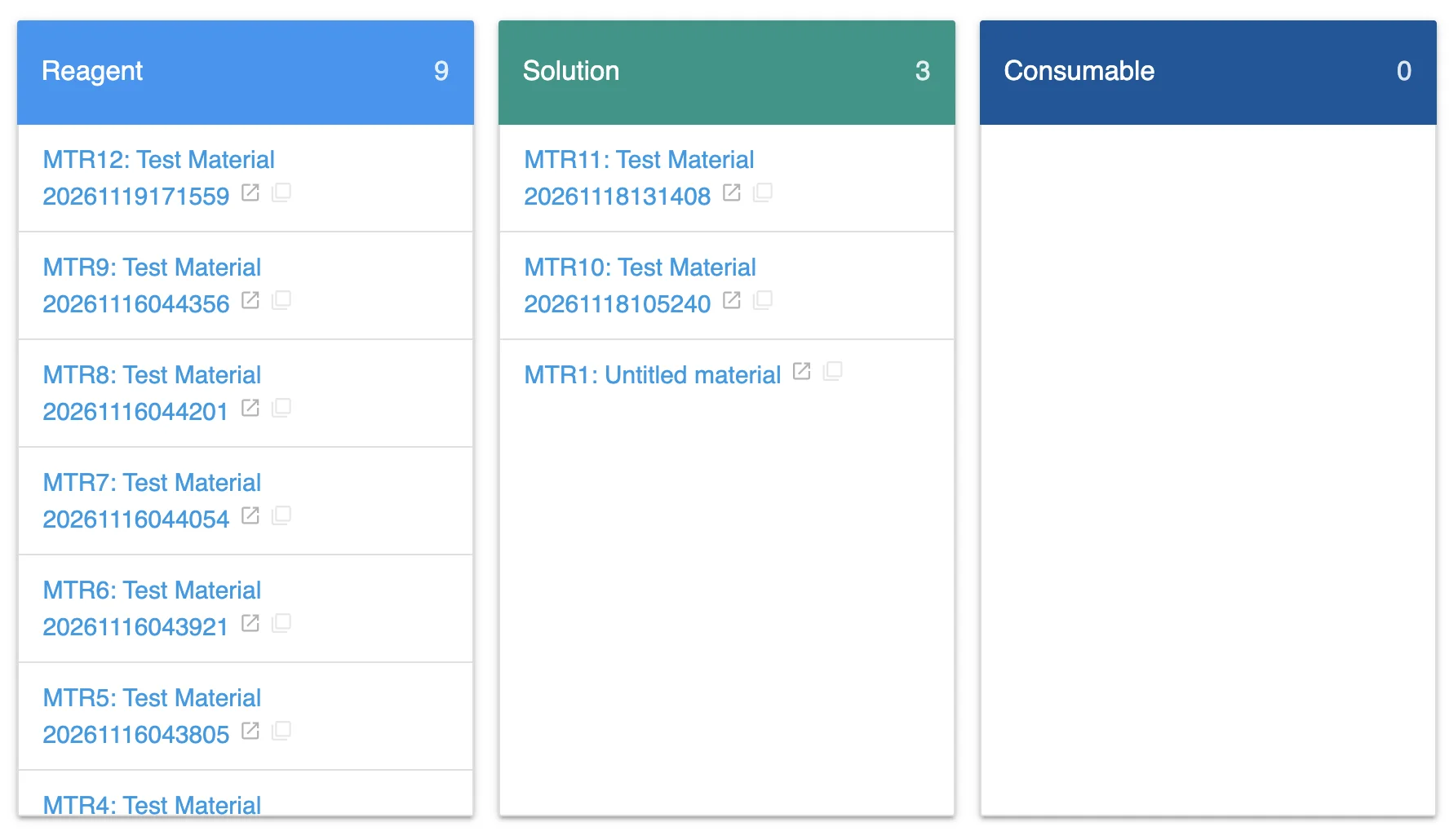
The Kanban Board groups records by the selected column and shows the record count in each header.
States
- Not configured: Until a table and a Select column are selected, the widget shows: Click Edit button and select a table and a select column to continue.
- Column unavailable: If the selected column cannot be loaded or has no options, the widget shows: The selected column is not available or has no options.
Additional Functions
Move a Record
Drag a record to another kanban column. The target kanban column is highlighted with a dashed border.
Release the record. It moves to the top of the target kanban column, the record counts update, and the value of the Select column is saved.
- Dropping a record on the No value column clears its value.
- If the update fails, an error message appears and both kanban columns reload to show the saved data.
- Dragging is not available when the dashboard is read-only.
If an option allows additional input, for example Reagent (lot 42), the record appears in the kanban column of its option. Moving the record sets its value to the option name only, so the additional input is removed.
Data Source
- Records: Records of the configured table that match the Query.
- Kanban columns: Options of the configured Select column.
Best Practices
- Use a status-like column: Choose a Select column whose options describe the stages a record moves through.
- Order the options deliberately: Arrange the options in the order work progresses, because the board uses the same order.
- Set option colors: Give each option a color so kanban columns are easy to tell apart.
- Narrow with a query: Use Query to limit the board to the records a team works on, which keeps each kanban column short.
- Adjust the width: Lower Kanban column width to fit more kanban columns on screen, or raise it for long record names.
Related Widgets
- Select: Defines the options, order, and colors used as kanban columns.
- Tasks: Manages table-backed tasks as a list with subtasks and completion tracking.
- Record Summary: Charts record counts, including counts grouped by a column.