Quantity
Specs
| Label | Value |
|---|---|
| Version | 1.0.0 (updated on 2026-11-11) |
| Developer | Labii Inc. |
| Type | Column |
| Support Configuration | Yes |
| Support Readonly view | Yes |
| Support Edit view | Yes |
| Support Form view | Yes |
| Support Default value | Yes |
| Support Import | Yes |
| Allow multiple | Yes |
Overview
The Quantity widget records a numeric value together with its unit in a single column, such as a volume, mass, or concentration. Users enter the number and pick the unit from a dropdown, so you no longer need a separate unit column next to a Number column.
Units are grouped by dimension, such as volume or mass. Each column uses one dimension, and you can limit it to the units your lab uses. Because every unit has a conversion factor, the widget can display a value in the most readable unit, for example 1500 µL as 1.5 mL. Units are only converted within the same dimension, so a volume is never converted into a mass.
Use case
- Use this widget to record the volume of a sample in
µL,mL, orL. - Use this widget to record the concentration of a DNA or protein sample in
ng/µLormg/mL. - Use this widget to record the molar concentration of a reagent in
nM,µM, ormM. - Use this widget with custom units to record counts such as
cellsormillion cells.
Configuration
For the widget to function correctly, select a Dimension. The other options are optional.
- Dimension - The kind of quantity. Units can only be converted within the same dimension. Defaults to Volume.
- Volume -
nL,µL,mL,L - Mass -
pg,ng,µg,mg,g,kg - Mass concentration -
pg/mL,ng/mL,ng/µL,µg/mL,µg/µL,mg/mL,g/L - Molar concentration -
pM,nM,µM,mM,M - Percent -
% - Count -
EA(each),PR(pair, 2),DZ(dozen, 12),GR(gross, 144) - Custom - The units listed in Custom units.
- Volume -
- Units - The units users can choose from. Leave empty to allow all units of the dimension. Units that do not belong to the dimension are ignored.
- Default unit - The unit selected by default. Leave empty to use the first unit.
- Auto scale - Display the value in the most readable unit, such as
1500 µLas1.5 mL. The stored value and unit are not changed. - Custom units - Required when the dimension is Custom. List the units from smallest to largest.
- Unit - The unit code, such as
cellsorvials. - Factor - The scale relative to the base unit, which has a factor of 1.
- Unit - The unit code, such as
- Constraints - Sets constraints on the number that can be entered. The constraints apply to the number as entered, in the selected unit.
- Constraints (minimum) - The minimum number that can be entered.
- Constraints (maximum) - The maximum number that can be entered.
- Format - You can format the displayed number, learn more here https://refreshless.com/wnumb/
- Format (decimals) - The number of decimals to include in the result. Limited to 7.
- Format (mark) - The decimal separator. Defaults to '.' if thousand isn't already set to '.'.
- Format (thousand) - Separator for large numbers. For example: ' ' would result in a formatted number of 1 000 000.
- Format (prefix) - A string to prepend to the number.
- Format (suffix) - A string to append to the number.
The unit is always displayed after the number, so you do not need to add it as a Format (suffix).
Example
Here is the configuration for a sample volume column that allows µL and mL, selects mL by default, rejects negative values, and displays values with 2 decimals in the most readable unit.
{
    "dimension": "volume",
    "units": ["µL", "mL"],
    "default_unit": "mL",
    "should_auto_scale": true,
    "constraints": {
        "min": 0
    },
    "format": {
        "decimals": 2
    }
}
Here is the configuration for a cell count column with custom units.
{
    "dimension": "custom",
    "conversions": [
        {"unit": "cells", "factor": 1},
        {"unit": "million cells", "factor": 1000000}
    ]
}
Views
See the interface of the widget in the following views.
Readonly view
Readonly view displays the number followed by its unit, such as 12.50 mL. When Auto scale is enabled, the value is displayed in the most readable unit. In the example below, the stored value 30000 µL is displayed as 30 mL.

Edit view
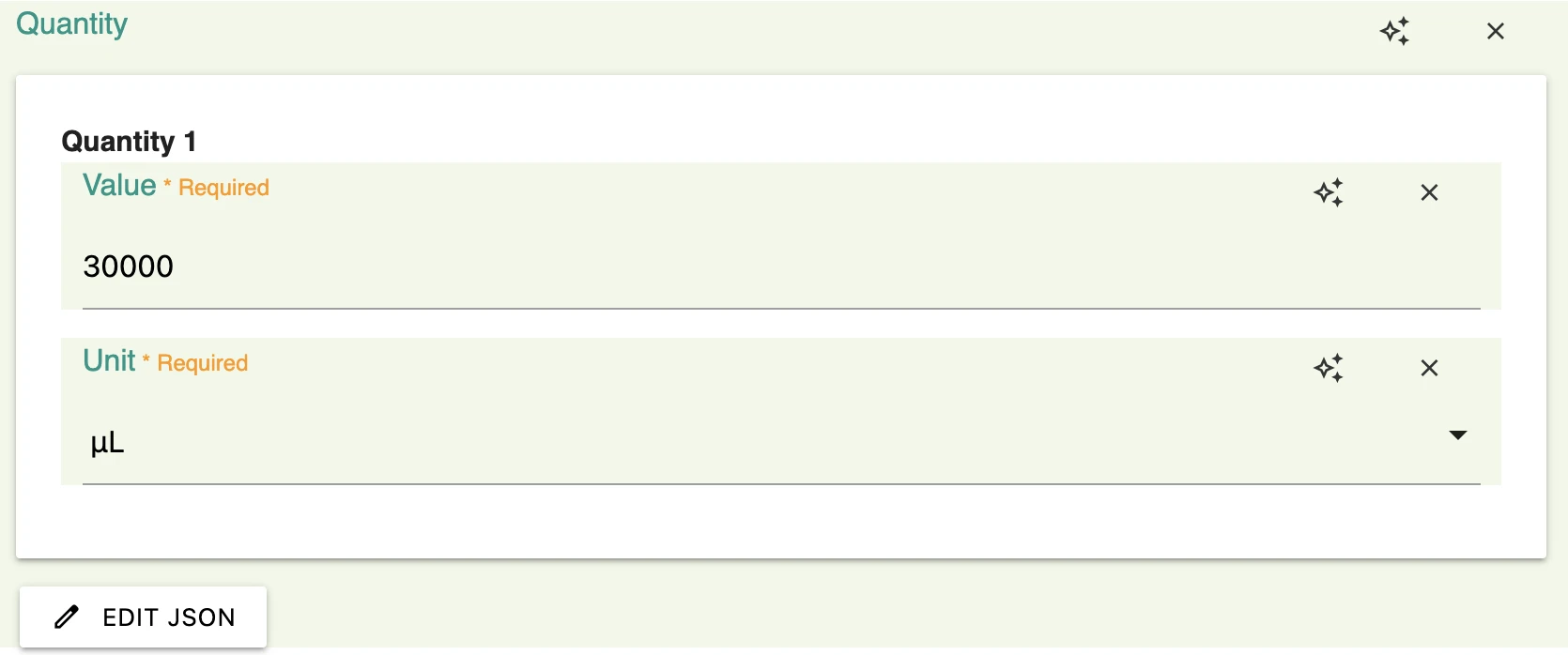
The Edit view is the interface that allows you to modify the value. It has two fields:
- Value - The number.
- Unit - A dropdown of the units allowed by the column.
Click Edit JSON to edit the data as JSON text instead.
Form view
The Form view is the field integrated into the add form for collecting values when creating a new record.
The Form view is same as the Edit view.
Data
Each widget in Labii stores data in a unique manner; refer below to understand how data from this widget is stored.
Data format
JSON data with the number and the unit code. The unit code is stored as is and is not translated.
{
    "value": 12.5,
    "unit": "mL"
}
Default value
The Default Value field within the column allows you to specify the default value when a record is created.
Default value shall be JSON text with the above keys.
{"value": 1, "unit": "mL"}
Import value
The Import Value is the value you need to include in your Excel table for it to be imported into Labii.
Import value shall be JSON text with the above keys.
{"value": 12.5, "unit": "mL"}